

Built around newsletters, not inbox triage.
Email clients are excellent for sending, replying, forwarding, and getting through messages. Letterboxx is built for reading, collecting, highlighting, and returning to newsletters.
Letterboxx turns newsletters from selected email folders into local reading copies, so your inbox can keep doing its usual job.

A calmer reading space for the newsletters you want — not your everyday email.

Create Letterboxxes for topics, writers, projects, or anything you want to keep together.

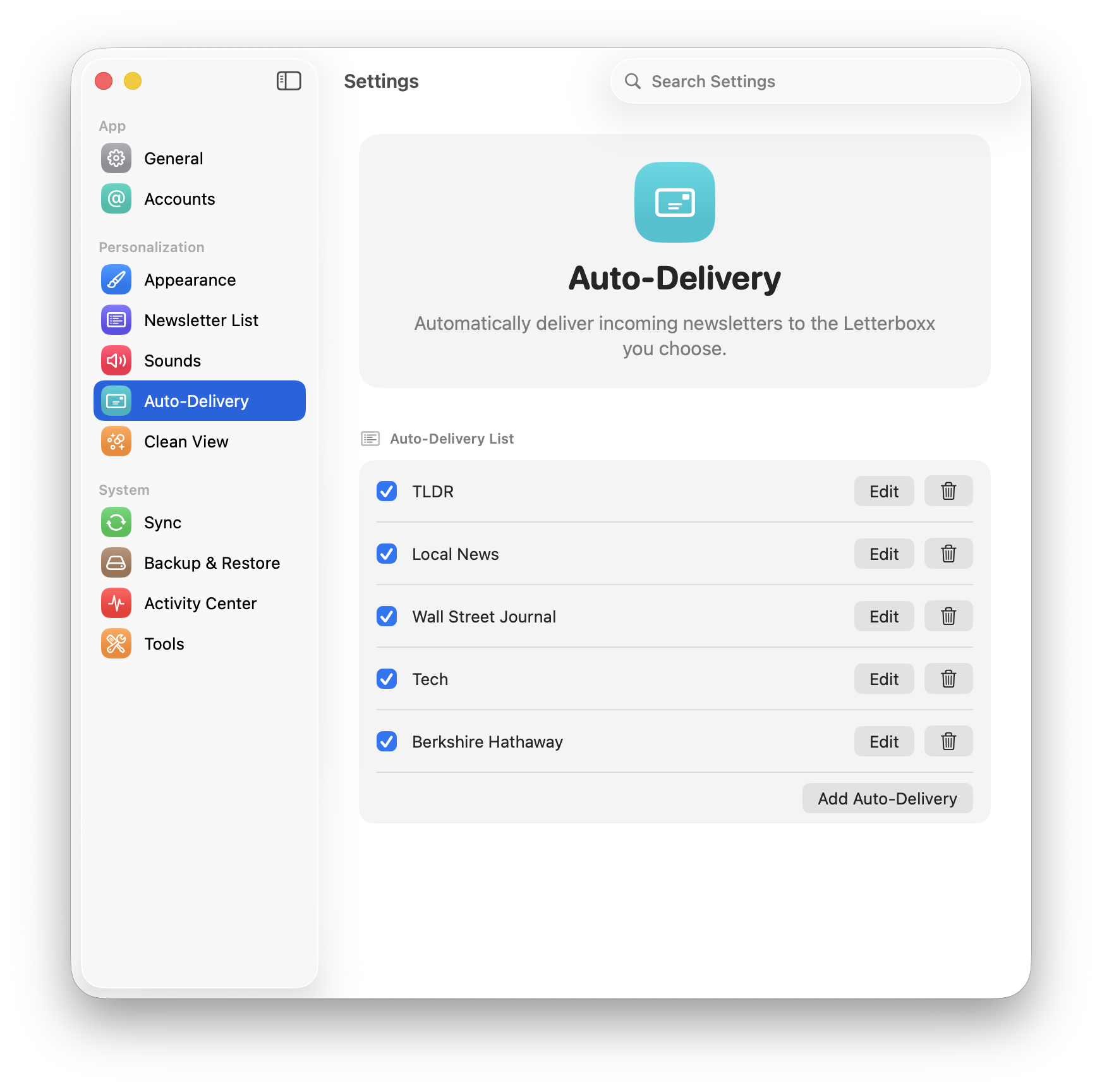
Route each sender, subject, or newsletter type to the right Letterboxx automatically.
Clean View trims trackers, ads, embeds, and messy email HTML for a calmer read.

Save useful passages in familiar colors and find them again later.

Favorite a newsletter, set a reminder, or move it somewhere you’ll find it next.

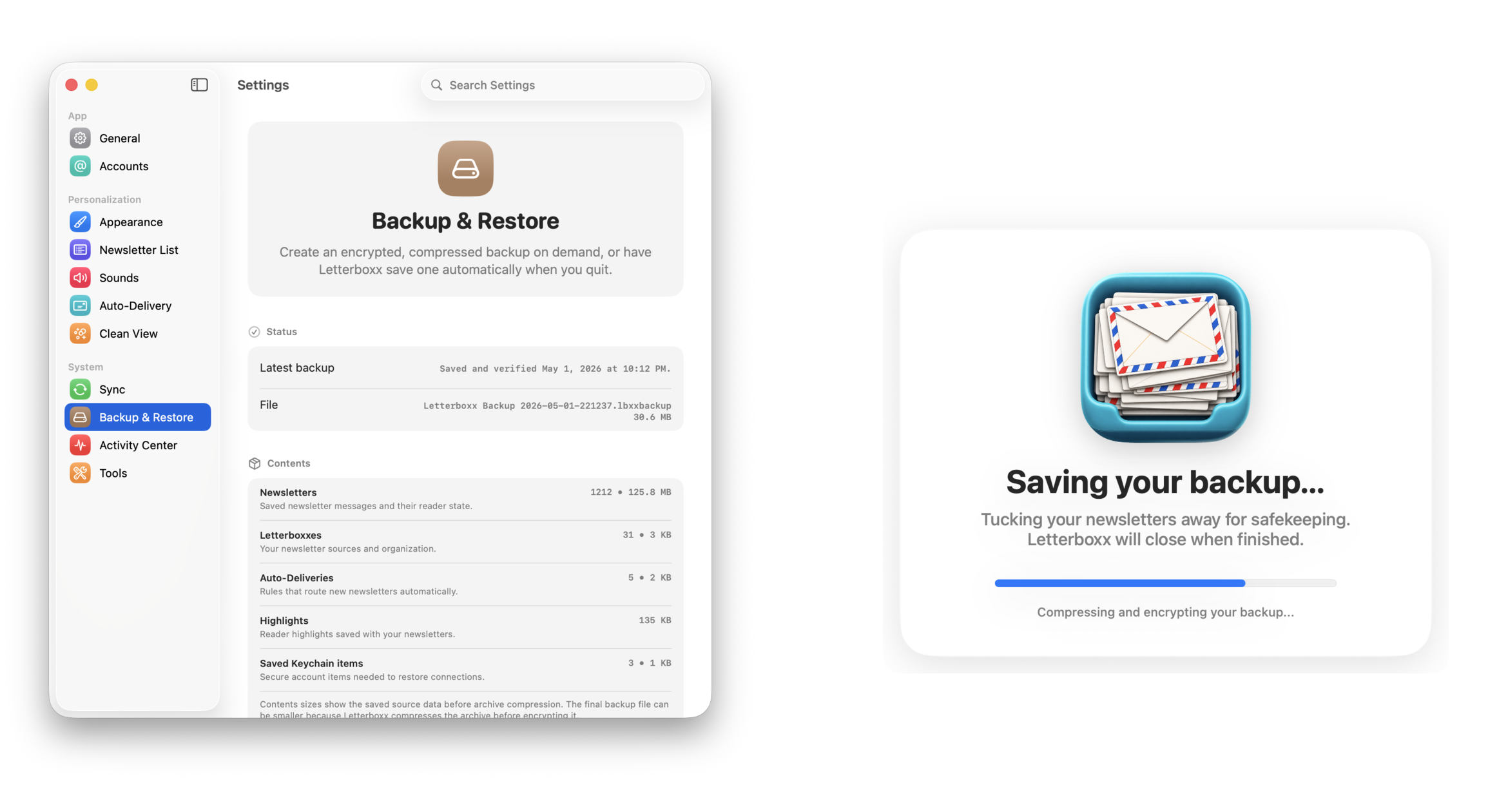
Encrypted backups preserve newsletters, Letterboxxes, rules, highlights, and settings.
Track what arrived, what you’ve read, and the library you’re building.

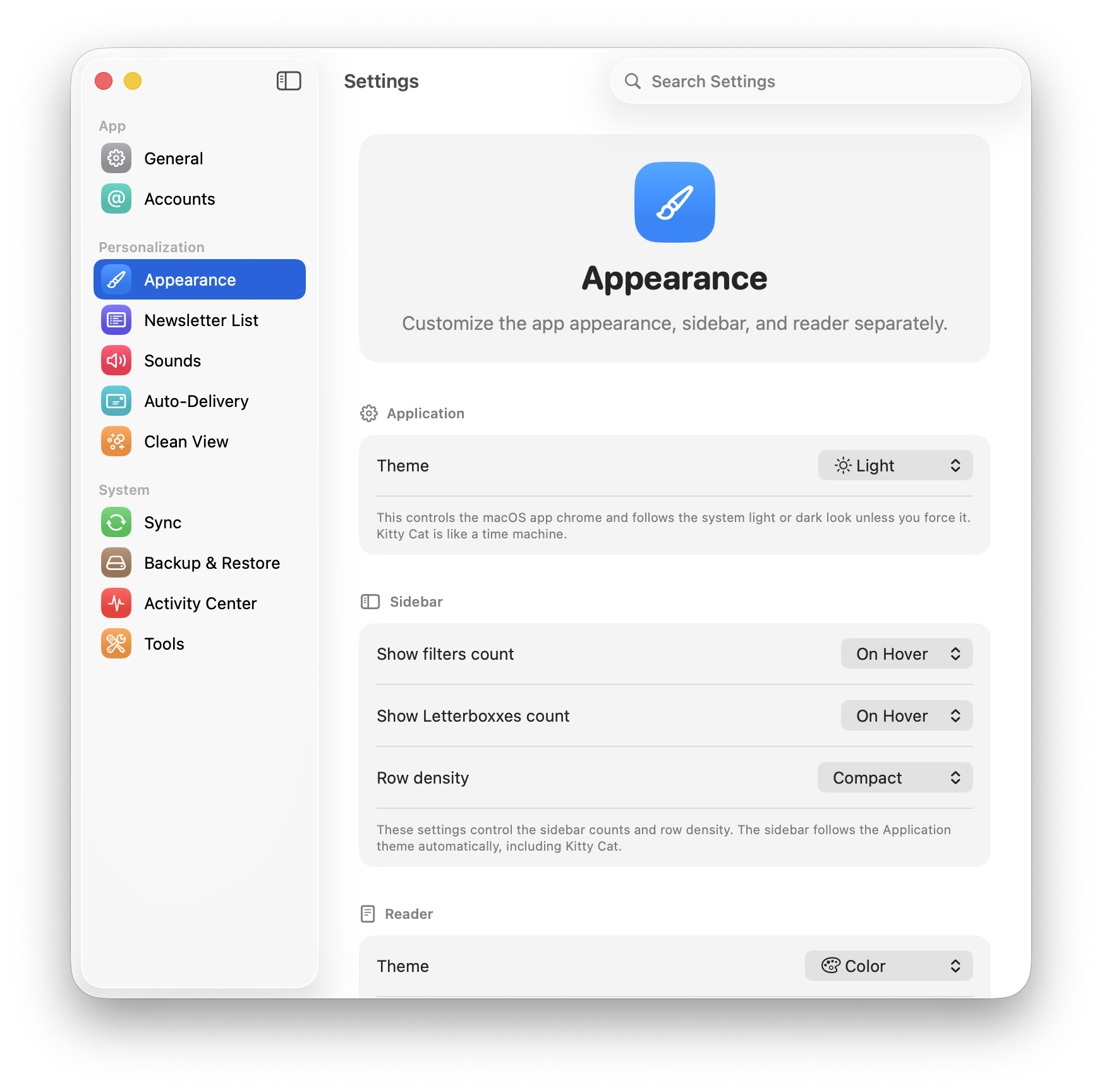
Choose light, dark, e-ink, newspaper, and other themes designed for comfortable reading.
Newsletter subscriptions already arrive through your email account. Letterboxx connects to the account and folders you choose, then saves local newsletter copies in its own reading library. The original messages stay on the mail server unless you explicitly delete them; organizing in Letterboxx changes the local reading copy, not your mailbox.
For the full source-to-library model, read how Letterboxx works. If you are deciding whether you need a separate reader at all, start with the email newsletter reader explanation; for the Mac-specific experience, see the newsletter app for Mac.
Email clients are excellent for sending, replying, forwarding, and getting through messages. Letterboxx is built for reading, collecting, highlighting, and returning to newsletters.
Connect Gmail or IMAP accounts, choose the folders that contain newsletters, and download local copies while original messages remain on the mail server unless you delete them.
Sort recurring newsletters into Letterboxxes, use Clean View when email HTML gets messy, save highlights, and search across the issues you have kept.
An email newsletter app should not make you abandon your inbox. Letterboxx works beside the email accounts you already use, importing local copies from selected folders so newsletters can become a reading library without changing where the original messages live.
That also makes it easier to organize email newsletters by topic, sender, or habit once they are outside the inbox. For exact source-folder and original-message behavior, read how Letterboxx works.

Jason Snell picked Letterboxx as his Pick of the Week on the August 11, 2026 episode of MacBreak Weekly.
Watch Jason Snell talk about Letterboxx on MacBreak Weekly.
MacBreak Weekly © TWiT, LLC. Used with permission. TWiT.tv
The point is not to replace email. The point is to give newsletters the reading tools that email clients usually hide behind mail-management workflows.
Your email inbox is built for messages, replies, and triage. Letterboxx is built for essays, digests, roundups, research, and the publications you actually meant to revisit.
Pick the mail folders that contain the things you want to read. Letterboxx downloads local copies into your Mac reading library, while original messages remain on the mail server unless you delete them.
Instead of treating every newsletter like another inbox item, Letterboxx turns recurring subscriptions into collections you can read, highlight, search, and keep.
Start with 14 days free before deciding.
Click through Dashboard, Newsletter, Clean View, Message Diagnostics, Backup & Restore, and Highlights to see how Letterboxx turns email newsletters into a calmer Mac reading space.


Letterboxxes are your custom newsletter folders inside Letterboxx. Create focused spaces for each topic, then file newsletters manually or route them automatically with Auto-Delivery.
Separate your reading stream into intentional Letterboxxes so your inbox stays clean and your best newsletters stay easy to find.
Letterboxxes live directly in the sidebar and can be created on demand, so setup and organization stay one click away.


Newsletters should feel like reading, not like loading a miniature website full of scripts, embeds, and tracking pixels. Clean View gives you a calmer reader with visible privacy reporting.
Clean View removes common newsletter clutter and keeps a local audit of what was taken out so the reader stays fast, quiet, and explainable.
The Clean View settings pane surfaces cumulative totals and attribution so privacy protection feels transparent instead of mysterious.

When a newsletter looks different than expected, Letterboxx can explain the message, Clean View changes, delivery state, and source details right beside the reading flow.
Message Diagnostics now flips into the reader pane, so you can understand a selected newsletter without opening a separate utility window.
Activity Center gives important app events a dedicated place, so import, routing, highlight, and maintenance details stay understandable.

Letterboxx is still local-first, but it gives you practical controls for routing newsletters, importing copies from mail accounts, choosing read-status behavior, and protecting your library.
Auto-Delivery routes new arrivals into the right Letterboxx using ordered rules you control.

Connect Gmail or IMAP accounts, import newsletter copies from selected folders, and see what iCloud-backed continuity can do when available.

Create encrypted backups for newsletters, Letterboxxes, Auto-Delivery, highlights, reminders, and settings.

Tune Letterboxx to your reading style with theme controls, typography settings, and calmer visual defaults.
Switch themes instantly and keep your reading experience aligned with your environment and focus level.

Adjust the newsletter list so it surfaces exactly the information you want at a glance.
Save important passages in any newsletter, keep them attached to that message, and use View Highlights to jump through them later.
Select text in the reader and save it as a highlight without leaving the newsletter.
The Highlighted filter shows newsletters that contain saved highlights, so the ideas you marked are easy to find again.
No. Letterboxx is a dedicated Mac app for reading and organizing newsletter copies. Your normal email app still handles everyday mail, replies, and sending.
No. Letterboxx connects to your email account using IMAP and downloads local newsletter copies into a reading library on your Mac. Original messages remain on the mail server unless you explicitly delete them.
Yes. Letterboxxes are topic-based spaces for newsletters. You can file newsletters manually or use Auto-Delivery rules for recurring senders.
Yes. You can select useful passages, save highlights in familiar colors, and return to highlighted newsletters later.
Yes. Letterboxx offers a 14-day free trial before you choose a monthly or annual plan.