

Turn your email newsletters into a library.
Your newsletters already arrive by email. Letterboxx gives them somewhere better to go.
Connect the email accounts you already use, choose the newsletters you want, organize them your way, and build a dedicated library for reading.
Download on the Mac App StoreAvailable for macOS · 14-day free trial
Your newsletters are already there.
Maybe they’re in Gmail. Maybe you’ve been saving them in folders for years. Maybe they’re spread across more than one email account.
You don’t need to start over.
Letterboxx works with the email you already have. You choose where it should look for newsletters, and Letterboxx gives them their own place to be organized and read.
How Letterboxx works
Connect the email accounts you already use.
Letterboxx works with Gmail, iCloud Mail, Outlook, Fastmail, DreamHost, and other IMAP email accounts.
Your newsletters don’t need a new address just because you want a better place to read them.


Your account stays your account.
Connecting an email account shouldn’t feel mysterious.
For Gmail, Letterboxx uses Google’s authorization process. Your Google password stays with Google, and Letterboxx only works with the labels you choose.
Learn about using Letterboxx with GmailChoose what belongs in your library.
You decide where Letterboxx should look.
With Gmail, that means choosing labels. With other email providers, you’ll choose folders. Letterboxx uses those selections to find the newsletters you want in your library.
You don’t have to hand over an entire inbox just to read the newsletters you care about.

Organize your newsletters as you build your library.
Finding your newsletters and organizing them are two different things in Letterboxx.
Your email folders or labels tell Letterboxx where the newsletters are. Your Letterboxxes let you decide how you want them organized for reading.
Choose a Letterboxx you’ve already created, or create a new one right there during setup. Name it whatever makes sense to you. If emoji help you recognize things faster, use them as part of the name.
- 📰 News
- 💼 Read Later
- 💸 Finance
- 🎧 Media
- 📚 Learning
Your email tells Letterboxx where the newsletters are. You decide how they belong together in your library.


Your email stays right where it is.
Organizing a newsletter in Letterboxx doesn’t move the original message into another folder or rearrange your email account.
Letterboxx saves its own local copy for your library. Your original email stays where it already lives.
That means you can build the reading library you want without rebuilding the email system you already have.

You decide what “read” means.
Your newsletters can live in Letterboxx without giving up control over how read and unread status works in your email account.
Sync both ways keeps Letterboxx and your email account together. Read something in either place, and the other can reflect that change.
Never write back keeps read status inside Letterboxx. Reading a newsletter won’t change anything in your email account.
You can choose separately for each account and change it later.
One account doesn’t have to be the whole library.
Maybe some newsletters are in Gmail. Others are in iCloud or another account. Maybe you’ve been saving newsletters in folders and labels for years.
Connect another account and keep building.
Letterboxx brings those selected sources together into the same reading library, even when the original newsletters aren’t all in the same place.

Now Letterboxx builds your library.
Once you’ve chosen your sources and organization, Letterboxx checks them for newsletters and adds local copies to your library.
Your mail stays where it is. Letterboxx is building the place where you’ll read it.

Your newsletter library is ready.
One account or several. One folder or years of saved newsletters scattered across different places.
Now they can live together in Letterboxx.

A place built for newsletters.
Your inbox is built around messages that demand your attention.
Letterboxx is built around newsletters you chose because they’re worth your time.
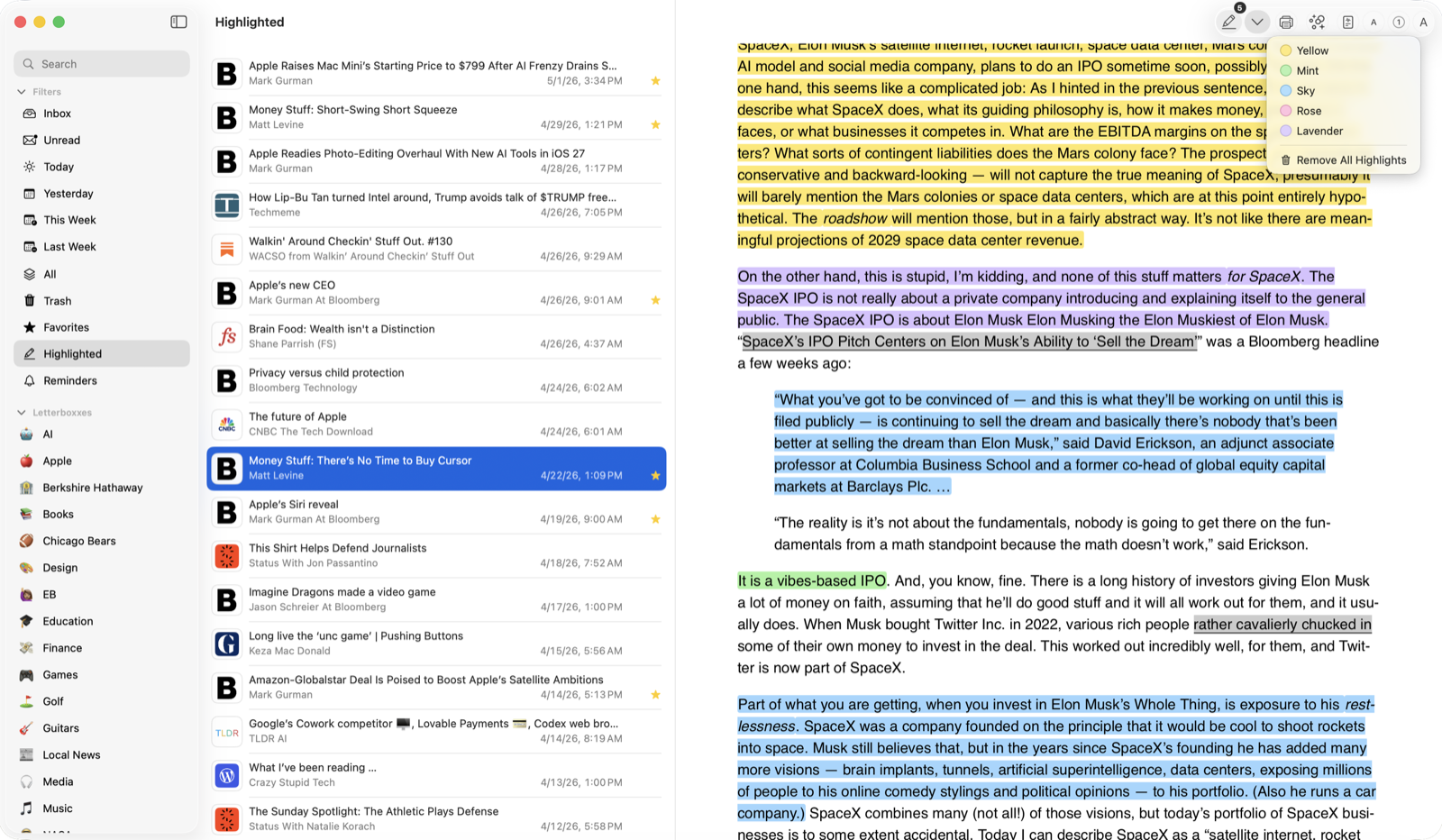
Organize them into Letterboxxes. Find what you want with Smart Filters and search. Save favorites. Highlight passages worth remembering. Set reminders for something you want to come back to.
Your newsletters stop being another pile of email and become something you can actually build a reading habit around.
Explore the email newsletter reader
Read them your way.
Newsletters can be wildly different from one another. Letterboxx gives you control over how you read them.
Adjust the reading experience, save highlights, search within newsletters, zoom when you need to, print what you want to keep, and come back to things later.
And when you’re reading at night, choose the treatment that works for the newsletter in front of you.
Night Mode: Off · Default · Standard · Adaptive
Less of the junk. More of the newsletter.
Newsletters can arrive with more than writing and images.
Letterboxx can reduce scripts, trackers and ad-like content, autoplay media, embeds, and—when you choose stricter privacy settings—remote images.
The privacy controls run as part of the Letterboxx reading experience, while features such as search, highlights, and reader appearance continue to work.
And the Privacy Report lets you see what Letterboxx reduced for the newsletter you’re reading.
A few things people usually want to know
Can I use newsletters I already receive?
Yes. Choose the folders or labels where those newsletters already live and Letterboxx can add local copies to your library.
Does Letterboxx move my email?
No. Organizing newsletters in Letterboxx does not move the original messages between folders in your email account. Your email stays where it is.
Can I connect more than one email account?
Yes. Your Letterboxx library can include newsletters selected from multiple connected accounts.
Which email providers does Letterboxx support?
Letterboxx supports Gmail, iCloud Mail, Outlook, Fastmail, DreamHost, and other IMAP email accounts.
Is Letterboxx an email client?
No. Letterboxx isn’t meant to replace your email app. It’s a dedicated reading and organization layer for the newsletters delivered through your email accounts.
Give your newsletters their own place.
The newsletters you care about deserve better than getting lost between everything else in your inbox.
Build a library around what you actually want to read.
Download Letterboxx for Mac14-day free trialRead the User Guide