

1
Choose a source.
Start with one newsletter mailbox or focused folder.
Letterboxx
Edition 1
Last updated August 15, 2026
1
Letterboxx is the newsletter reader I wanted for my own Mac.
I have been saving and reading things from the Internet since the late 1990s: RSS feeds, blogs, long-form essays, newsletters, and small updates from people doing interesting work. I have always liked keeping good writing around so I can come back to it.
Why Letterboxx Exists
2
Newsletters eventually moved into email, which solved delivery but created a different problem: the inbox was never designed to be a reading library.
Your inbox has to handle everything: receipts, password resets, appointments, work messages, personal mail, and all the other things that need attention. Newsletters are different. They are things you choose to read, save, search, highlight, and return to. I wanted them to have a place built around that.
Some of the thinking behind Letterboxx goes back to 2002. I was working in IT then, helping manage large Windows deployments with Microsoft SMS and antivirus rollouts. Most of my day-to-day work with computers was operational: deploy, maintain, patch, clean up, repeat.
Why Letterboxx Exists
3
Then I bought a used first-generation iPod on eBay. A few weeks later, I picked up a used G4 iMac.
That was not an especially practical family-budget decision. We had a 6-year-old, a 17-month-old, and not much extra money for things we did not actually need. My wife still supported it, as she has with a lot of my ideas over the years.
That whole Apple world changed the way I thought about software. The hardware, OS X, the industrial design, the animations, and the way the pieces worked together made software feel considered in a way I had not experienced before.
Why Letterboxx Exists
4
For more than 20 years I have helped build web and mobile software with a lot of talented teams. Letterboxx is different: it is the first software product I have released entirely on my own. That gave me room to make very specific decisions about what the app should do, how it should look, and how it should behave on a Mac.
That also means Letterboxx is opinionated. I have tried to make it feel native to the Mac, useful without being complicated, and flexible where reading preferences really differ from person to person.
I built Letterboxx as the email newsletter reader I wanted: a Mac-first library for newsletters that I do not want buried beside urgent mail. Email can keep doing email. Letterboxx gives newsletters their own place to be read, organized, searched, and kept. I write more about the thinking behind the app in the Letterboxx letters.
Why Letterboxx Exists
5
That is Letterboxx: a place to collect newsletters instead of scattering them through your inbox, with enough control to make reading work the way you want it to. I also wanted it to be a genuinely “Mac-assed Mac app”. I hope you enjoy using it.
Chris Anderson, May 2026
Why Letterboxx Exists
6
User Guide
Contents
7
User Guide
Contents
8
User Guide
Contents
9
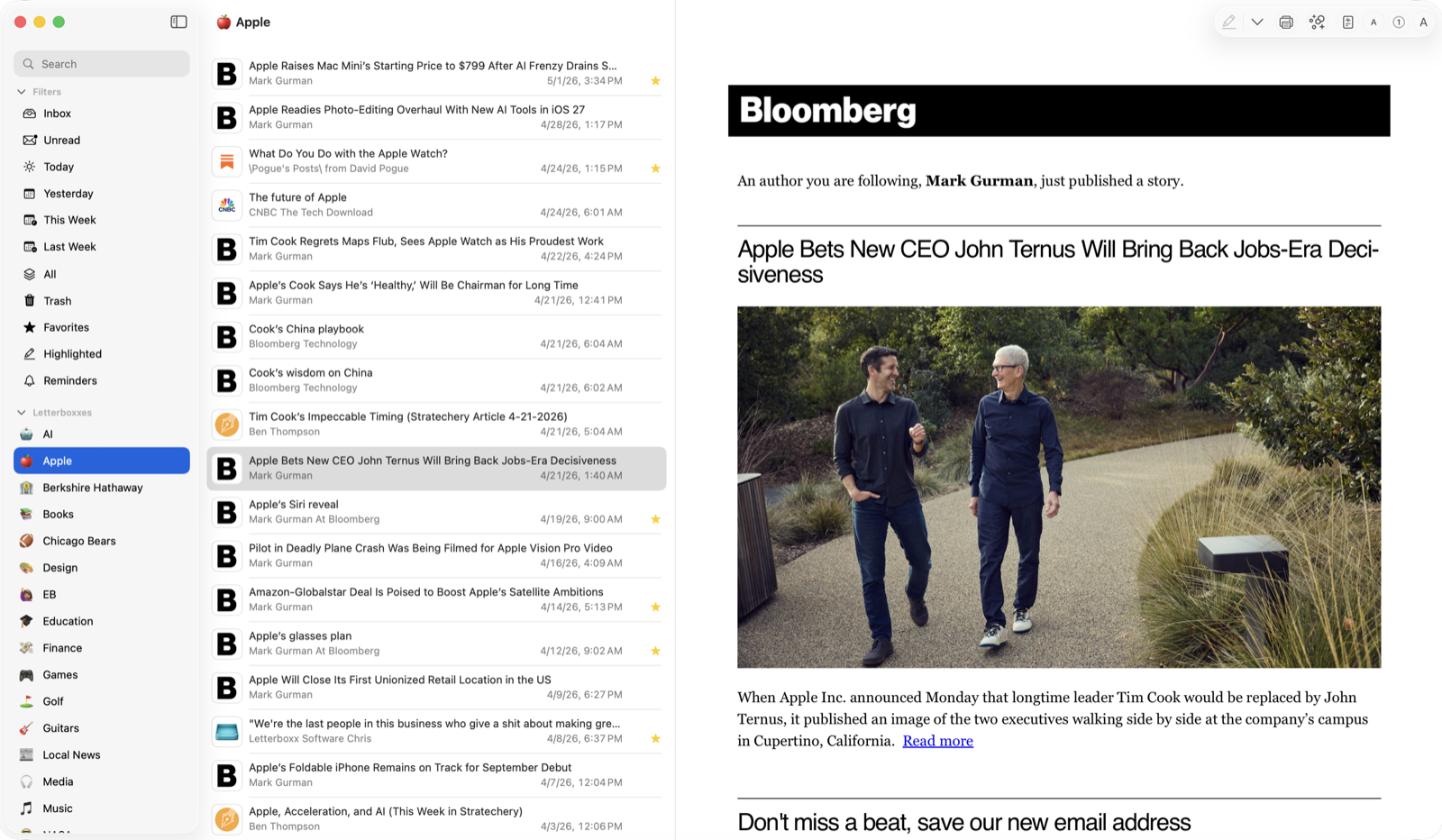
The main window has a few familiar places. Once you know them, the whole app starts to feel obvious.
Letterboxx At A Glance
10
Letterboxx: Newsletter Reader is a Mac app for reading and organizing email newsletters.
Opening Notes
11
Letterboxx connects directly to your email account using IMAP, then retrieves newsletters from the folders you choose and stores local copies in its Mac reading library. Gmail uses Google sign-in for account access; iCloud, Outlook, DreamHost, and other providers use standard IMAP settings when available.
After you connect an account and choose its newsletter folders, Letterboxx downloads copies of messages from those sources and continues checking them for new issues. It does not mirror your entire mailbox. Only the folders you select become sources for the Letterboxx library.
How Letterboxx Works
12
Your original messages remain on the mail server unless you explicitly delete them. If a newsletter still has a server reference, permanently removing it from Letterboxx Trash can also remove the original message from the connected email account. Read and unread status is separate: each account can keep that state only in Letterboxx, send changes back to the server, or sync recent server state in both directions.
A few terms are worth separating:
How Letterboxx Works
13
When the distinction matters, this guide says IMAP INBOX for the mail-server folder and Letterboxx Inbox for the local app view.
Read status is configurable per account:
Local only keeps read and unread changes inside Letterboxx.Send to mail server sends local read and unread changes back to the original IMAP folder in the background.Sync with mail server also refreshes recent downloaded newsletters from the server's read status during normal checks.How Letterboxx Works
14
Organization inside Letterboxx is local. Letterboxxes, favorites, highlights, reminders, Clean View settings, and Auto-Delivery rules apply to the library on your Mac; they are not folders or rules on your mail server.
Deletion is the important exception. If a newsletter still has a server reference, permanently removing it from Letterboxx Trash can affect the original message in your email account. Back up your Letterboxx library before large cleanup or account changes.
How Letterboxx Works
15
Imagine you have a folder in Mail called “Stocks” with years of newsletters, earnings analysis, investing ideas, and market commentary.
Letterboxx can use just that folder as a source and build a dedicated reading library from its newsletters. The originals stay where they are in email; Letterboxx gives you a different way to use the copies on your Mac.
Why Not Just Use Mail?
16
The same approach works for a Tech folder full of product writing, a Local News folder, a Research folder, or any other mailbox where newsletters have accumulated over time.
Email apps are designed for communication:
Why Not Just Use Mail?
17
Letterboxx is designed for reading:
If you want the essay version of this distinction, read Why Newsletters Feel Different From Email.
Why Not Just Use Mail?
18
That is the basic distinction: Mail is still your email client. Letterboxx is the place where newsletters become a reading library you can organize, search, highlight, and keep.
For a shorter version of the reading model, see the email newsletter reader page. Gmail users can start with the Gmail newsletter reader. For the organization model, read the guide to organizing newsletters with Letterboxxes.
Why Not Just Use Mail?
19
Letterboxx has a lot of settings, but you do not need to configure everything before you start reading.
Start with the defaults. As you use the app, you can change the parts that matter to you: list density, reader appearance, sounds, Dock badges, Clean View, backups, and how newsletters are routed into Letterboxxes.
Settings and Personalization
20
Settings and Personalization
21
Settings gives you control over:
For a new setup, accounts, source folders, and the reader are enough. The rest can wait until you know which parts of the app you actually want to change.
Settings and Personalization
22
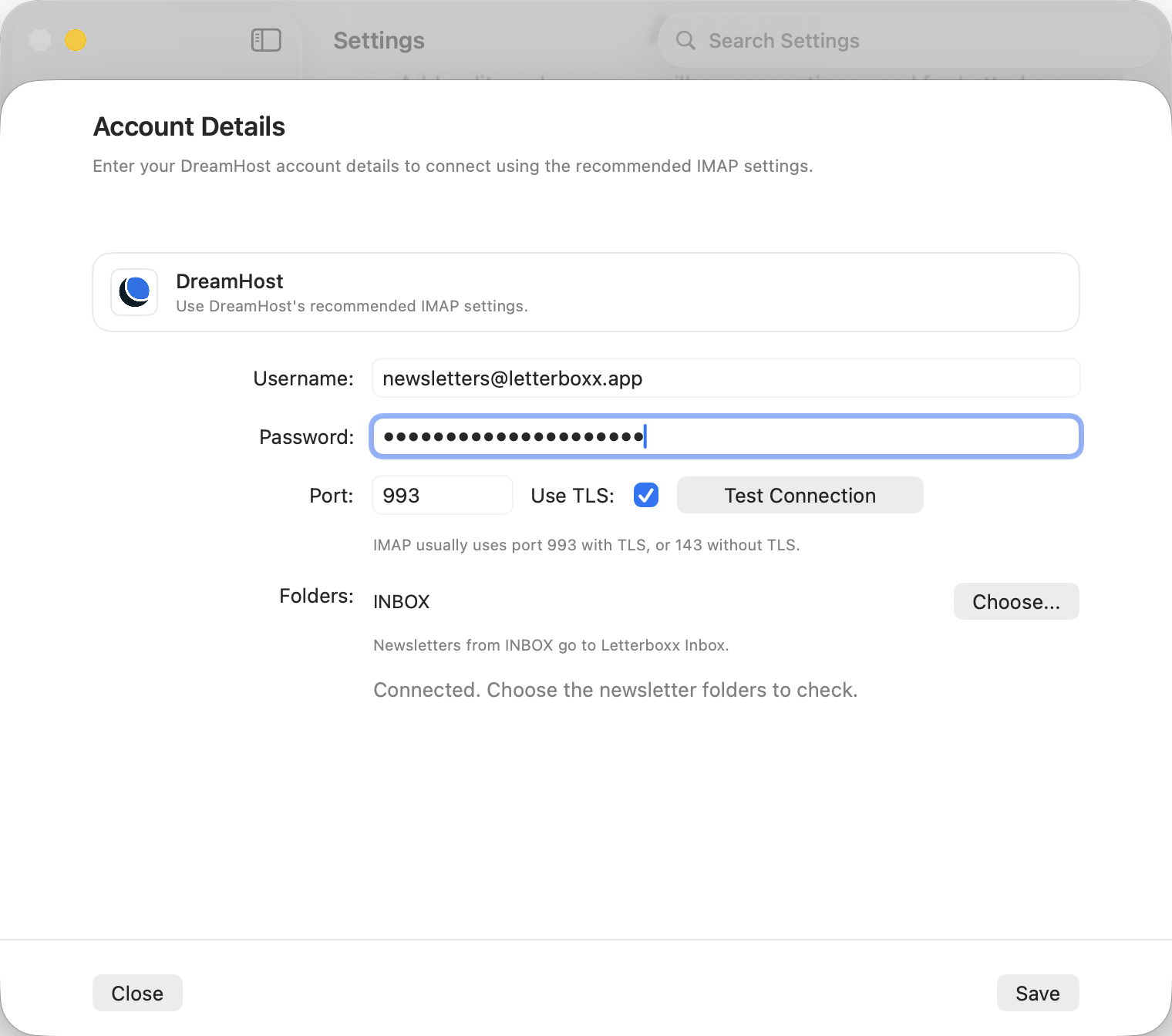
Letterboxx supports Gmail, iCloud, Outlook, DreamHost, and custom IMAP accounts.
Gmail uses Google sign-in. Other providers use their IMAP host, port, username, password, and TLS settings. Letterboxx tests the connection before saving the account.
Accounts and Newsletter Sources
23
Accounts and Newsletter Sources
24
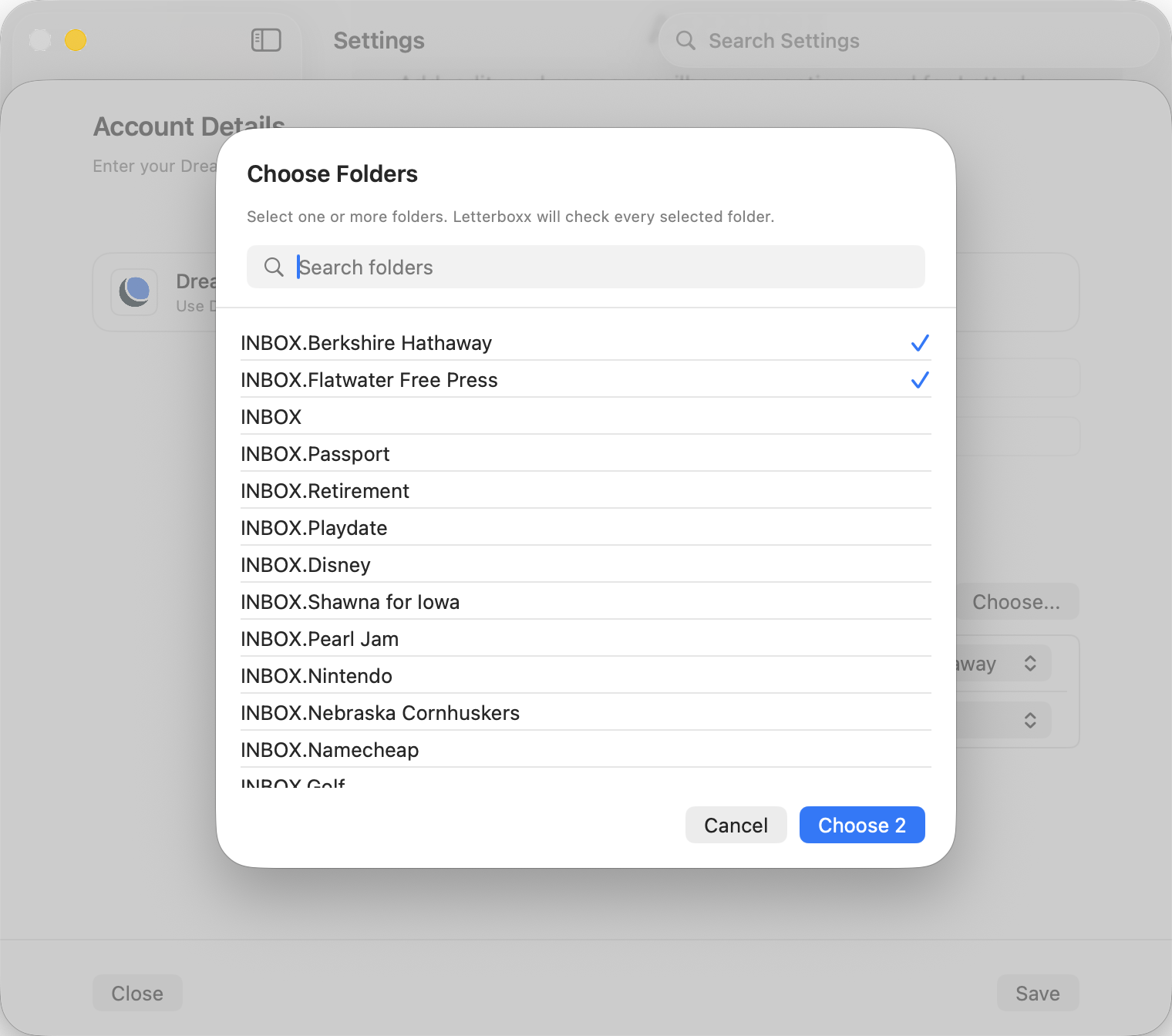
Choose the email folders that actually contain newsletters. Letterboxx only checks the folders you select.
When your provider returns a folder list, Letterboxx shows it in a searchable chooser. If the provider cannot return a useful list, you can enter folder names manually.
Each selected IMAP folder can send downloaded newsletters to Letterboxx Inbox or directly to a local Letterboxx. This only controls where the local copies appear. It does not move the original messages on the server.
Source folders
25
Source folders
26
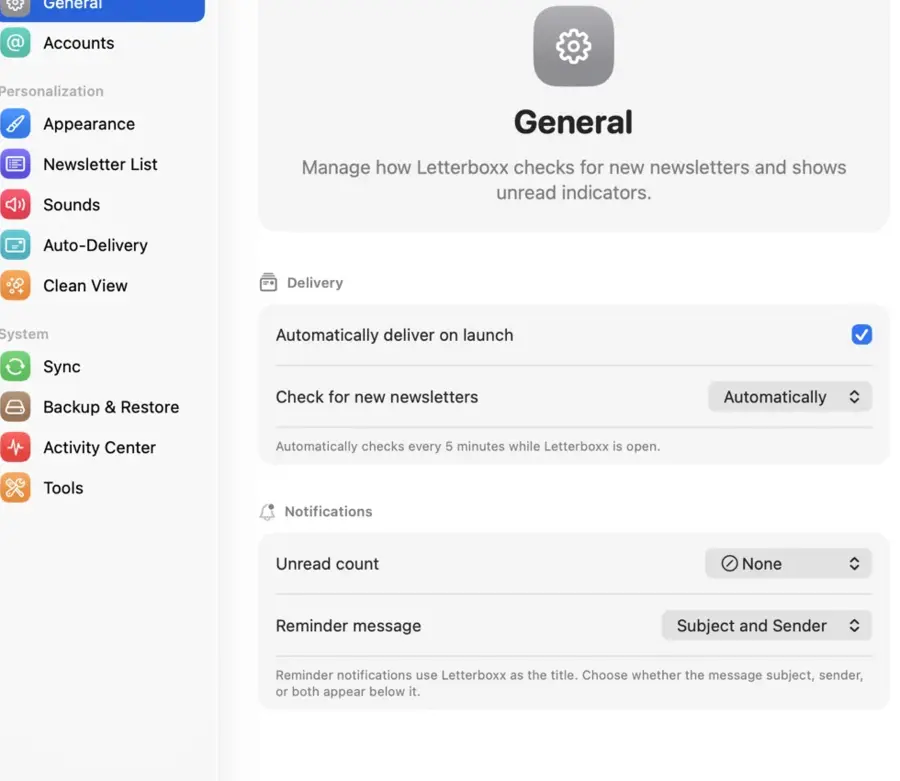
In Settings > General, choose whether Letterboxx delivers automatically on launch and whether it keeps checking while open or waits for manual checks from the newsletter list.
You can also choose what the Dock badge counts: nothing, Inbox only, all newsletters, unread, today, yesterday, this week, last week, or reminders.
Reminder notifications can show subject and sender, subject only, or sender only.
Delivery settings
27
Delivery settings
28
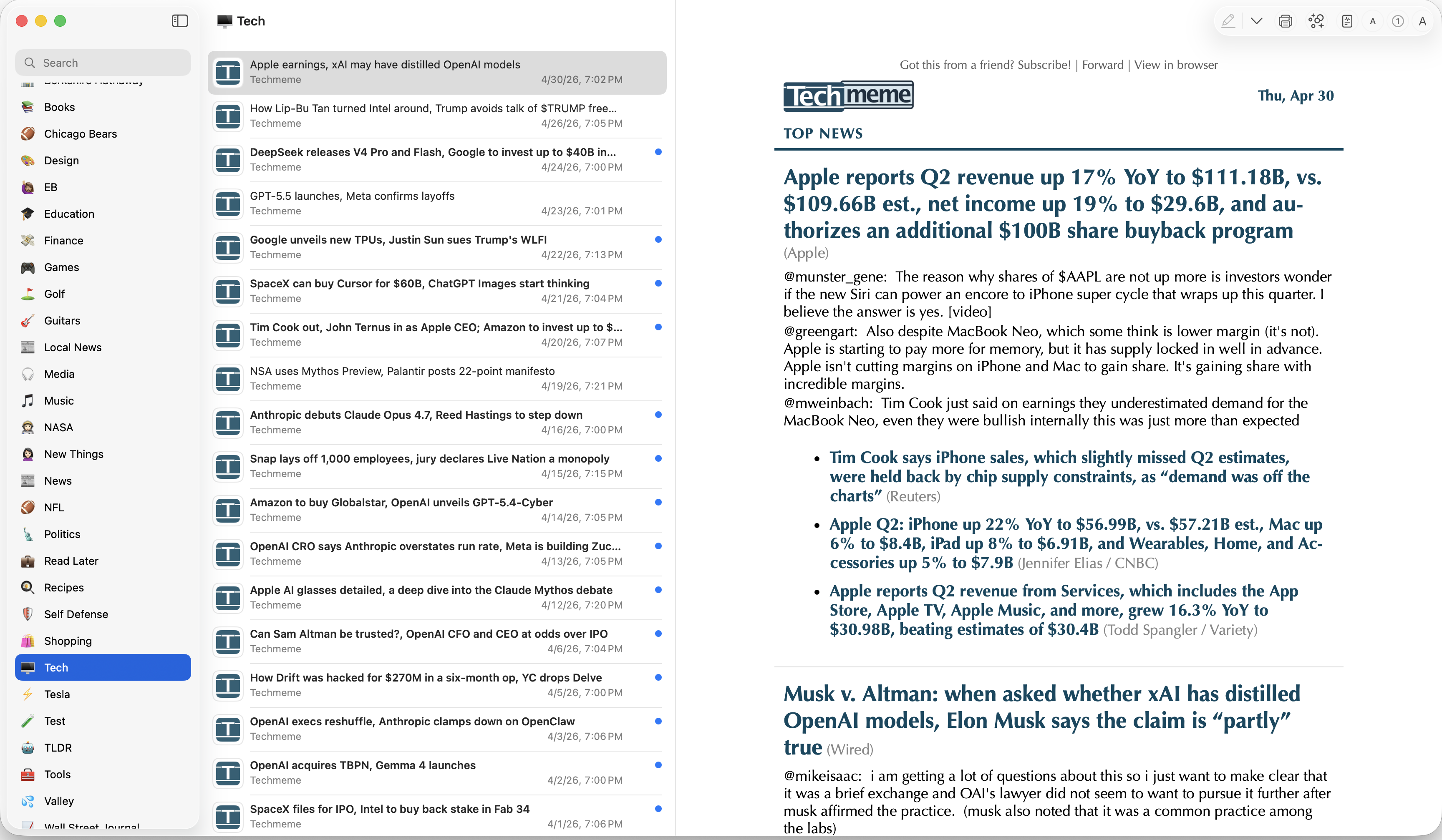
The reader is where you spend most of your time with a newsletter. Letterboxx keeps the reading surface separate from the rest of the app so you can tune it independently.
The Reader
29
The Reader
30
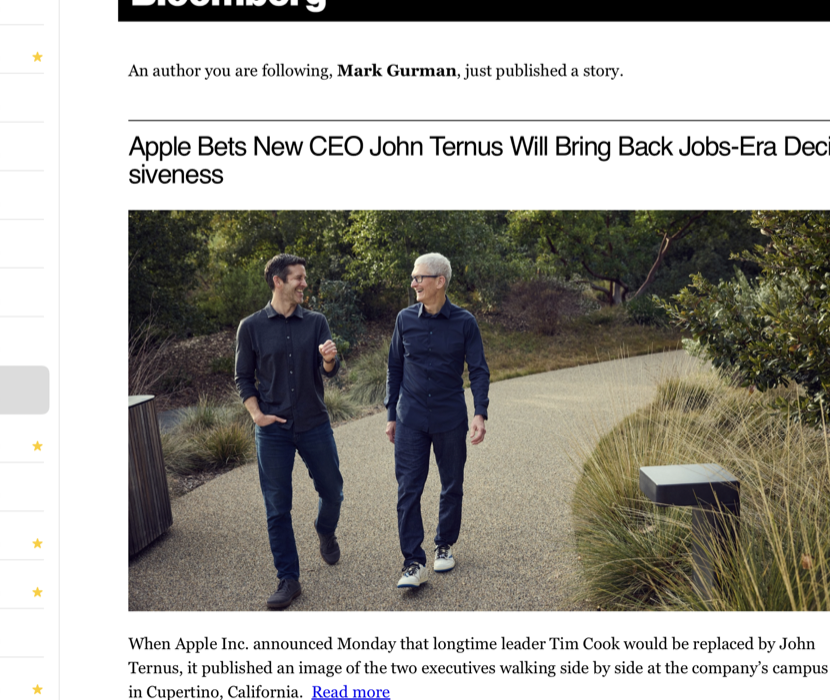
The reader toolbar includes:
Show Clean View button in the reader.The Reader
31
The Reader
32
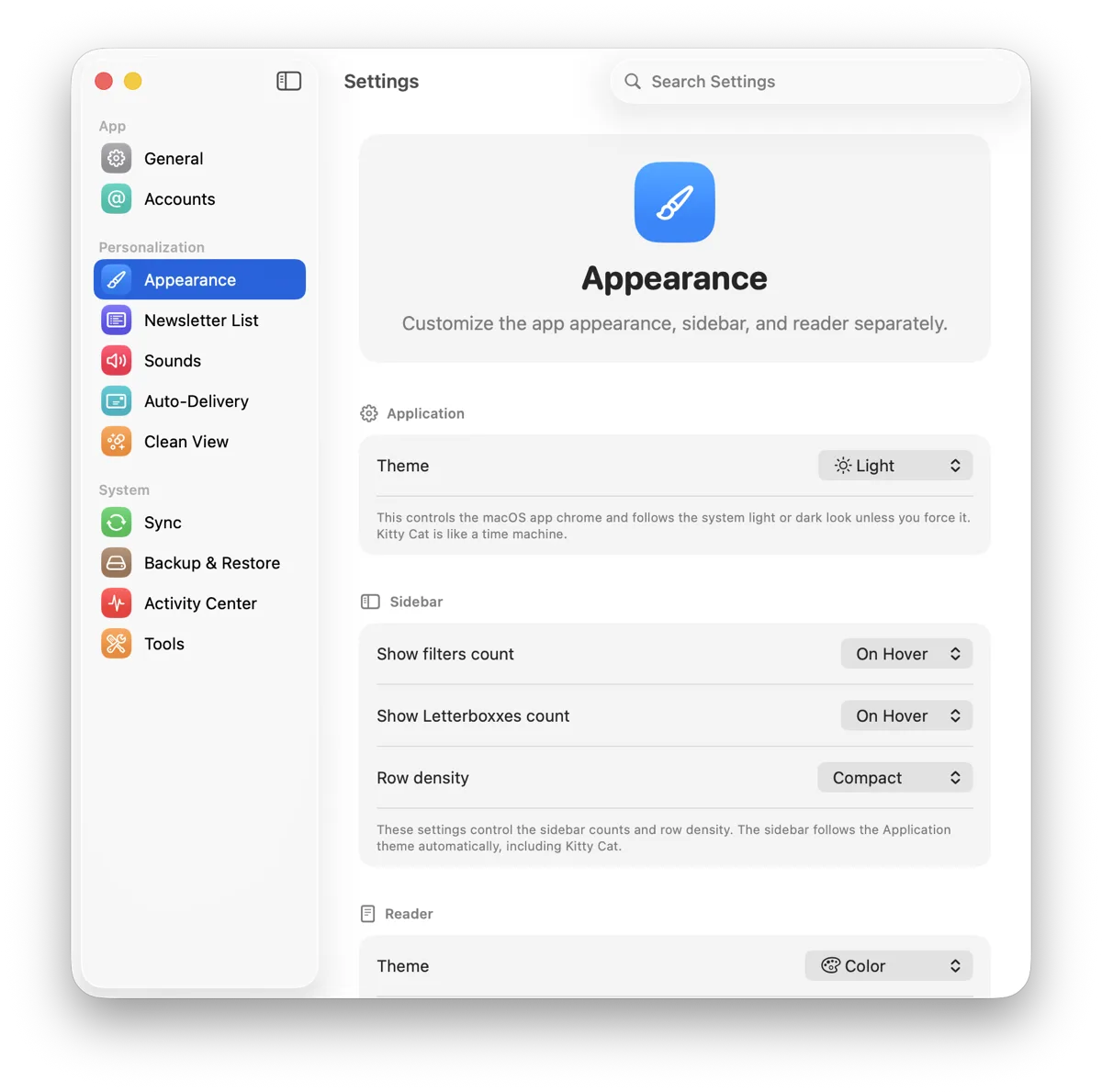
Settings > Appearance separates the app interface from the newsletter reader. You can change one without forcing the other to match.
The app appearance can follow the system, use Light or Dark, or use Kitty Cat. Kitty Cat changes the dashboard and sidebar with an Aqua-inspired look while leaving newsletter content in the reader separate.
Reader themes are separate:
Night Vision controls how Letterboxx treats newsletter content when you read in a dark interface. Newsletters arrive with wildly different backgrounds, colors, and HTML, so a single dark-mode treatment does not work well for all of them. Off leaves the newsletter essentially as delivered. Default applies the gentlest dark treatment. Standard uses stronger normalization. Adaptive is the most contrast-forward option.
Reader themes
33
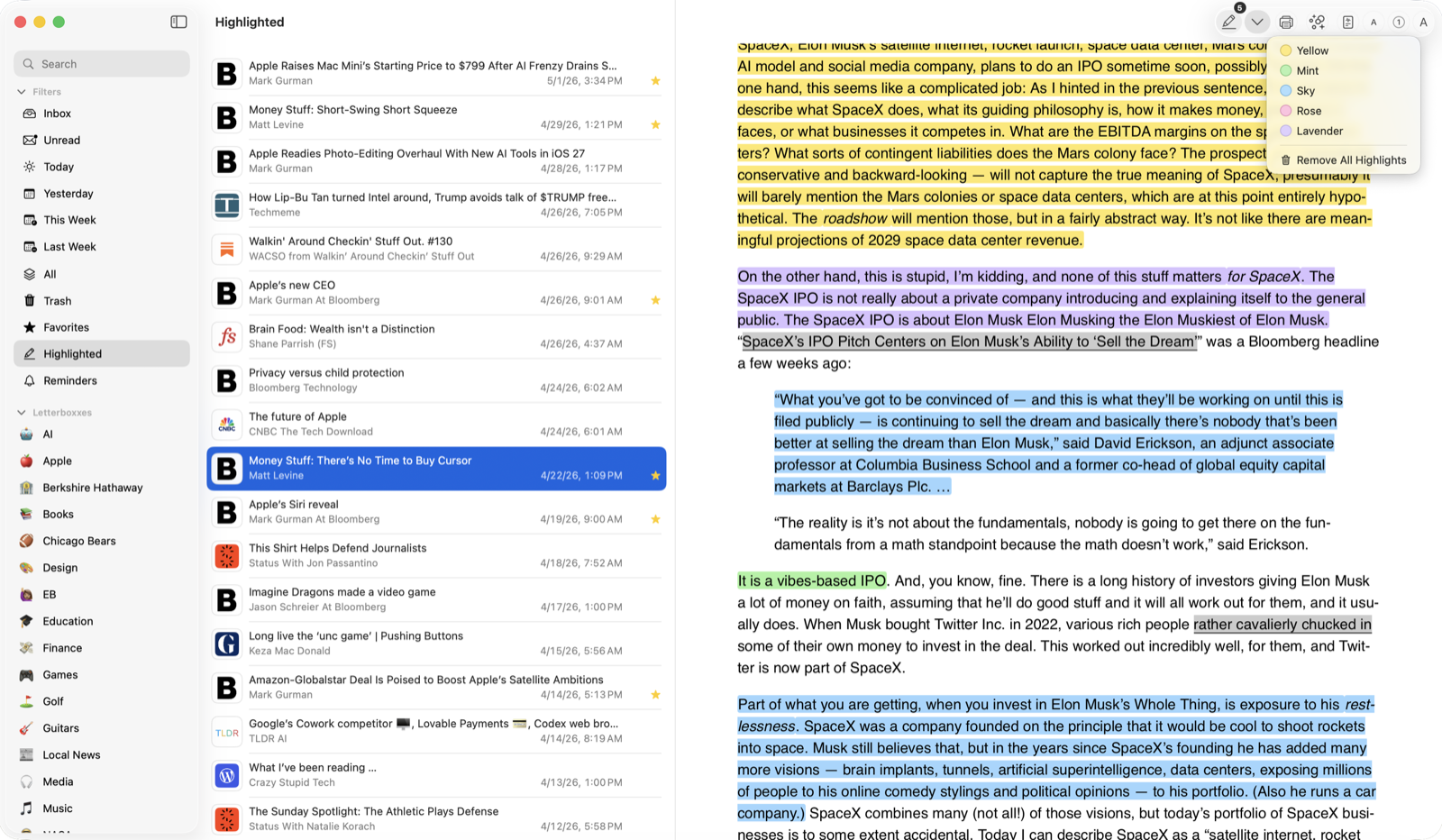
Select text in the reader, then add a highlight from the toolbar or contextual menu. Highlights are saved with the newsletter in Letterboxx so you can find those passages again later.
Highlights
34
Highlights
35
Highlights work well for quotes, ideas, recipes, product notes, research, or anything else you want to find again without searching the whole newsletter.
Highlights
36
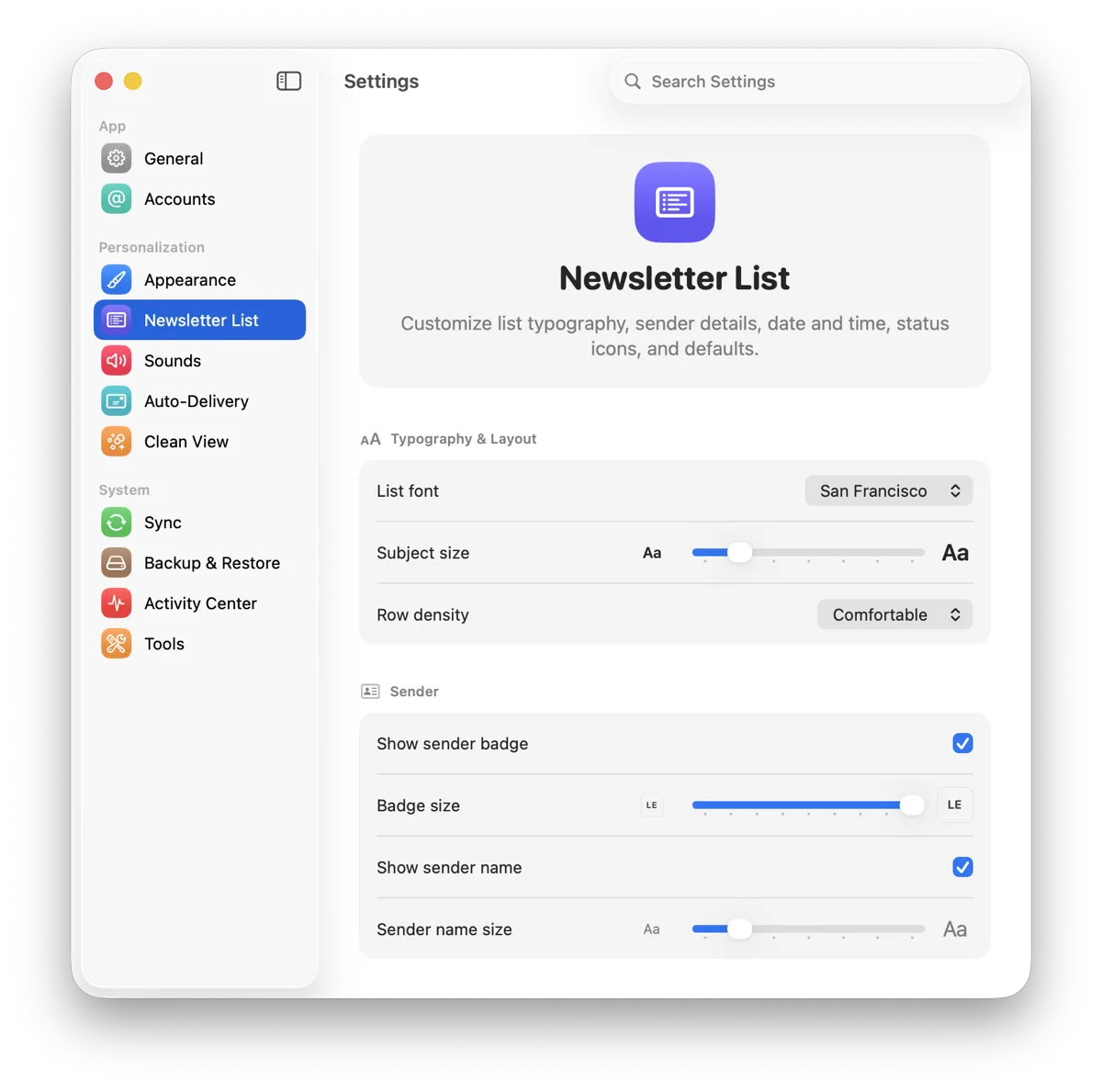
The newsletter list can be adjusted for either quick scanning or a simpler reading queue.
The Newsletter List
37
The Newsletter List
38
Settings > Newsletter List lets you adjust:
For faster scanning, show more metadata and use a tighter row density. For a simpler list, hide details you do not use and give the subject more room.
The Newsletter List
39
Settings > Appearance also controls sidebar counts and density, independently of the newsletter list.
The Newsletter List
40
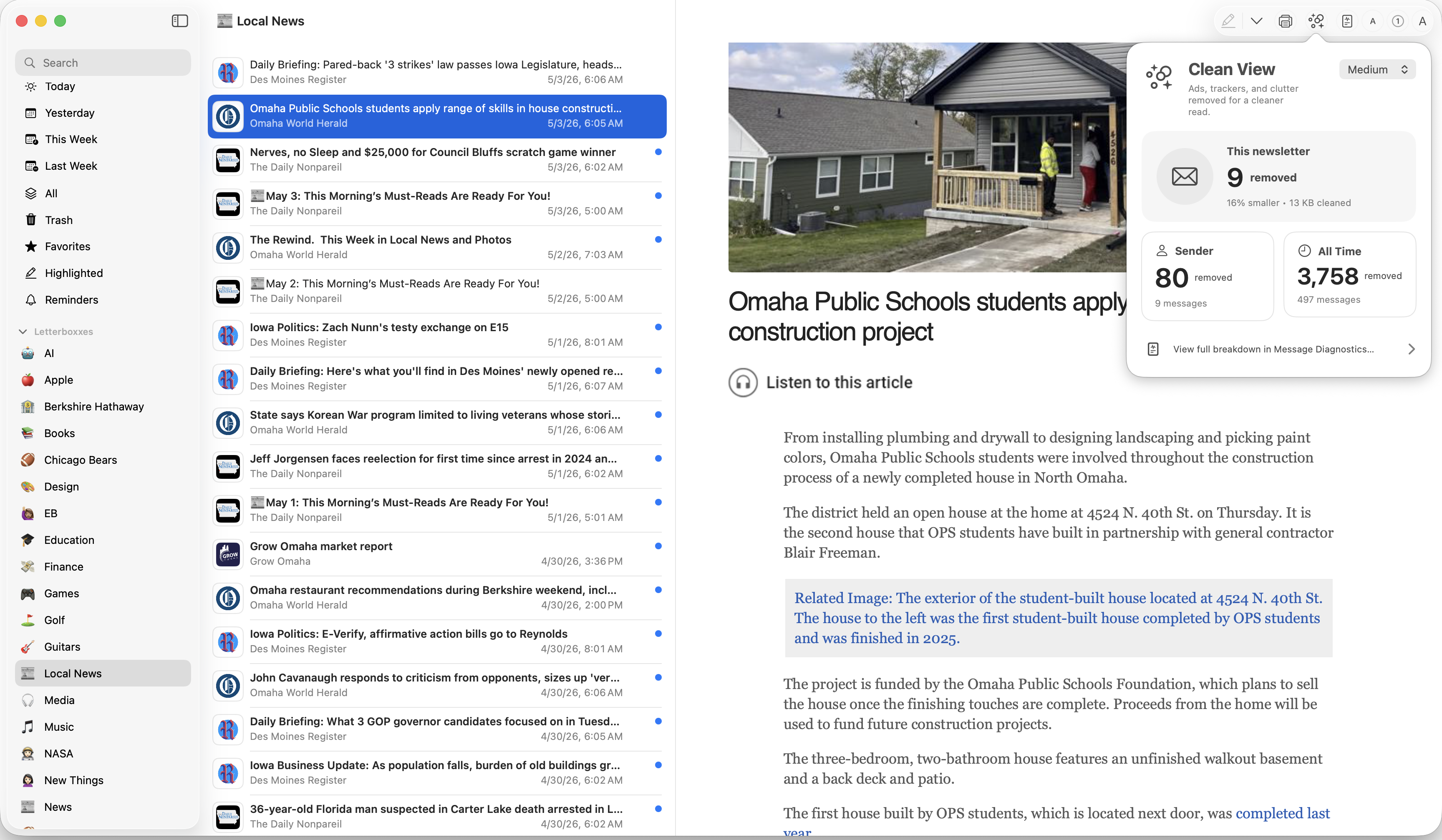
Clean View is the reader's privacy and content-cleanup layer.
Before a newsletter is shown in the reader, Clean View can filter parts of its HTML that are not useful to the reading experience, including scripts, trackers, ads, autoplay media, embeds, and—when you choose it—remote images.
Clean View
41
Clean View
42
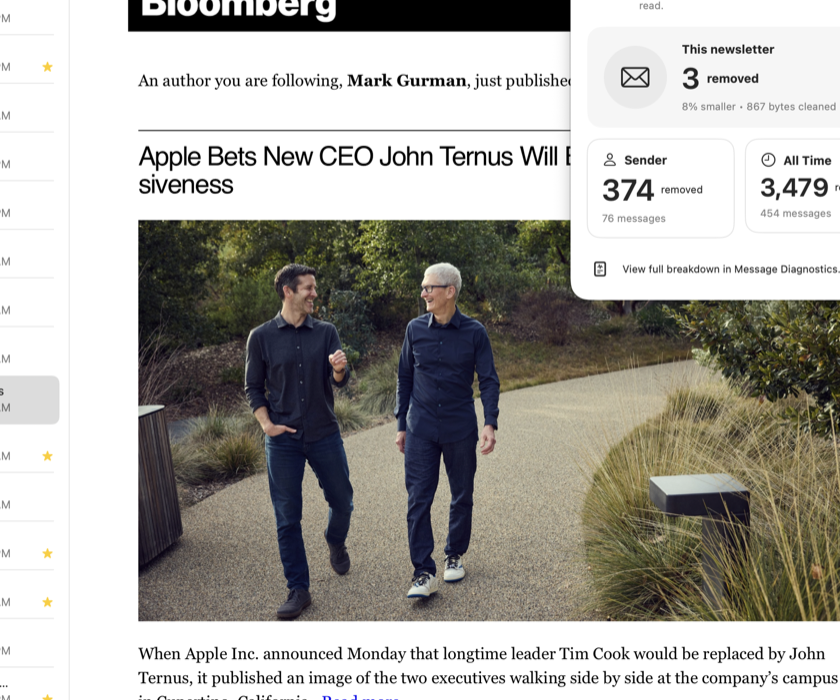
Cleaning modes:
Custom mode gives you separate controls for page scripts, trackers and ads, autoplay media, embeds, and remote images.
Clean View
43
Medium is the default and is intended to be conservative. High is available when you want stricter blocking. Off is useful for compatibility or when you want to compare the newsletter without content blocking.
Clean View
44
Clean View
45
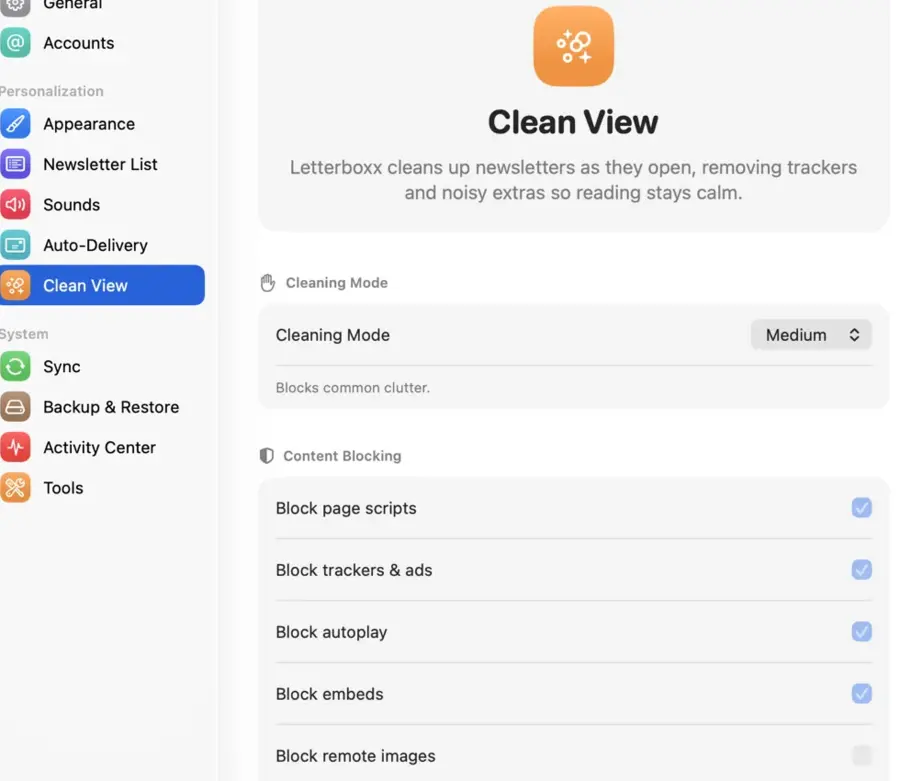
When Clean View is enabled, filtering happens automatically before the newsletter is rendered. Use Show Clean View in the reader to inspect what was removed from the selected newsletter and open the related settings.
The report is specific to the current newsletter. It shows the categories Clean View changed and the amount of content removed from that message.
Settings > Clean View contains the global controls, including Cleaning Mode, individual content blockers, Blocking List status, cumulative totals, and Clean View Intelligence details.
You can update the Blocking List from Settings. Letterboxx shows its current status, update time, version, source, verification state, and source count when available.
The Clean View report
46
The Clean View report
47
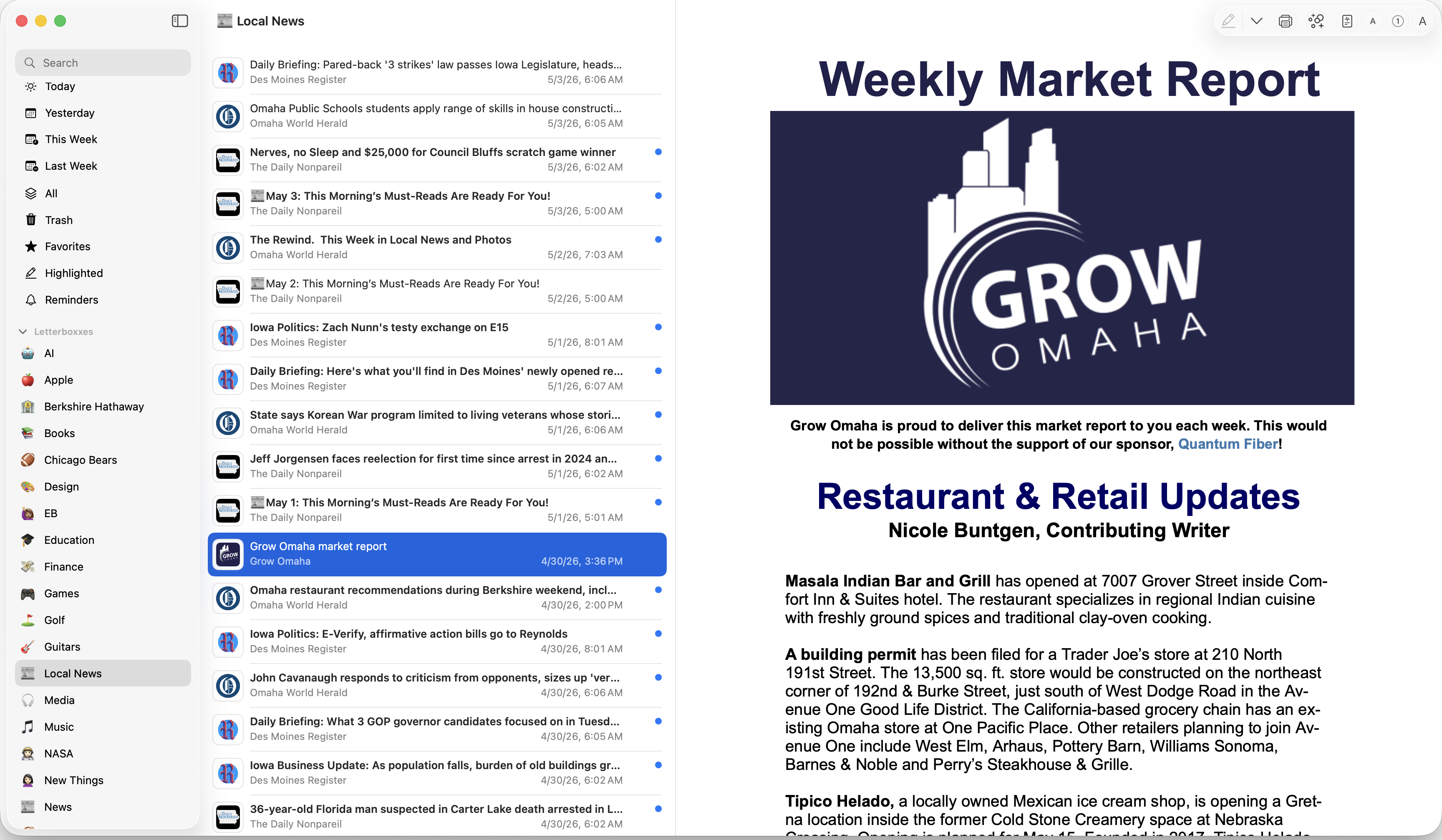
Letterboxxes are local folders or categories inside your newsletter library. You can use them for topics, publications, projects, clients, hobbies, research, shopping, or any other grouping that makes sense to you. The focused guide to organizing newsletters with Letterboxxes has more examples.
Auto-Delivery
48
Auto-Delivery
49
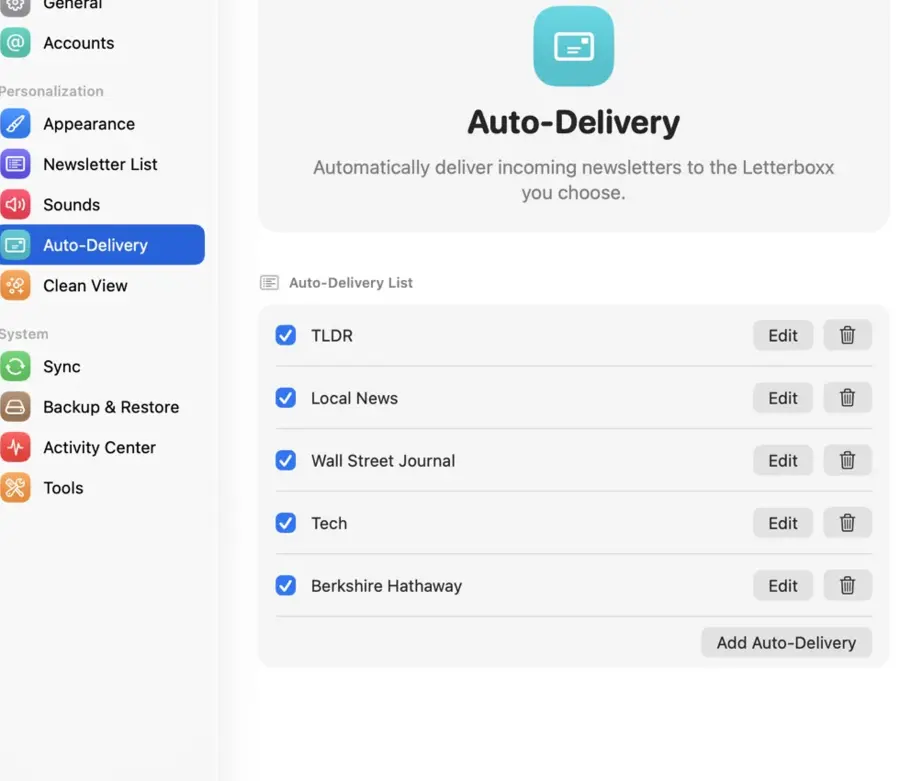
Auto-Delivery routes new newsletters into Letterboxxes automatically when they arrive.
Auto-Delivery works best for predictable patterns:
Auto-Delivery
50
Rules can match all conditions or any condition. Conditions can look at From, To, Cc, any recipient, Subject, Message content, and List-ID. Operators include contains, does not contain, begins with, ends with, and is equal to.
Auto-Delivery
51
Auto-Delivery
52
If a selected IMAP folder is already routed directly to a local Letterboxx, that folder route takes precedence over sender- or content-based Auto-Delivery rules for new newsletters from that source.
Auto-Delivery
53
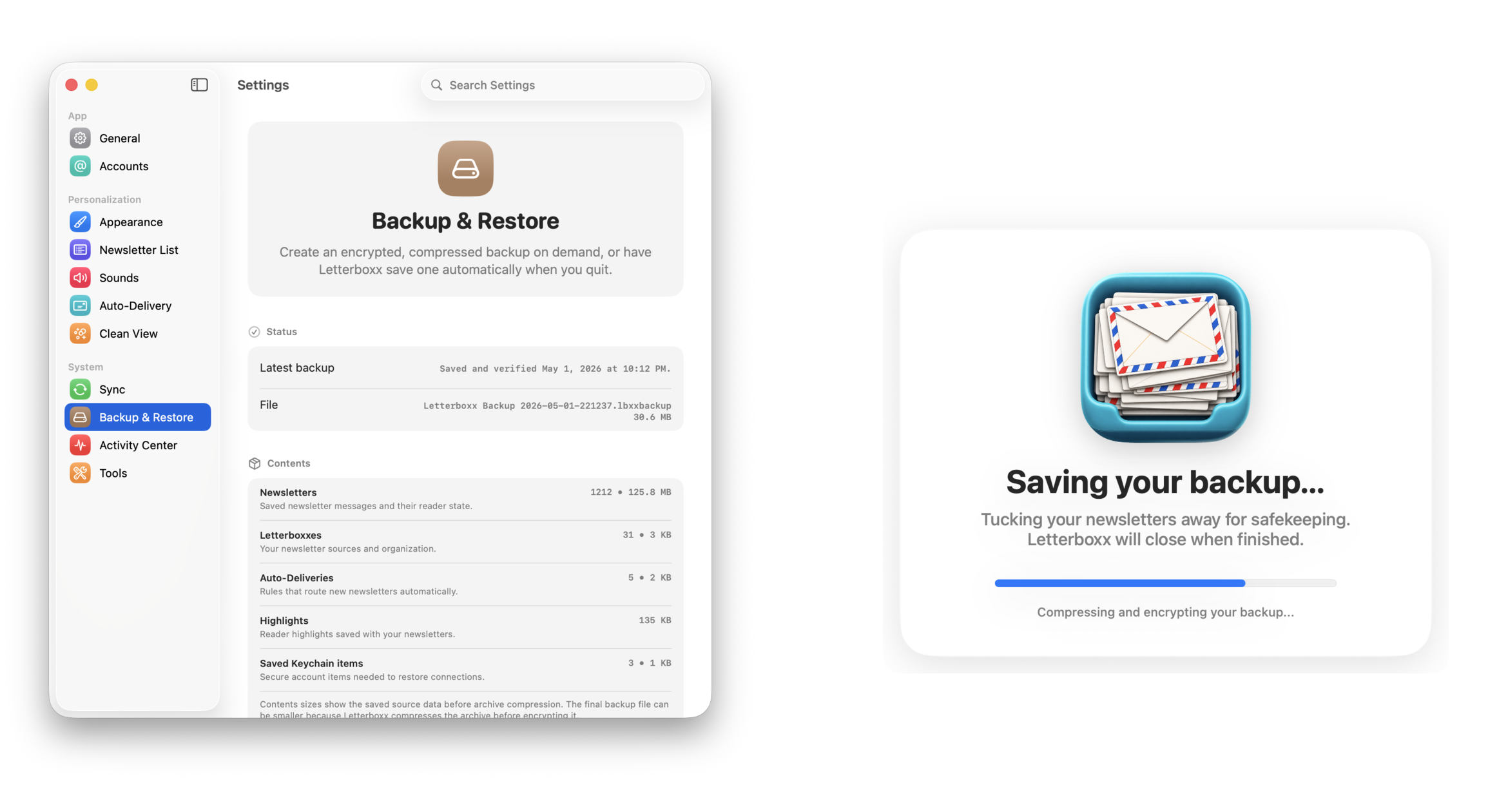
Backup & Restore creates encrypted, compressed .lbxxbackup archives of your Letterboxx library.
Backup & Restore
54
Backup & Restore
55
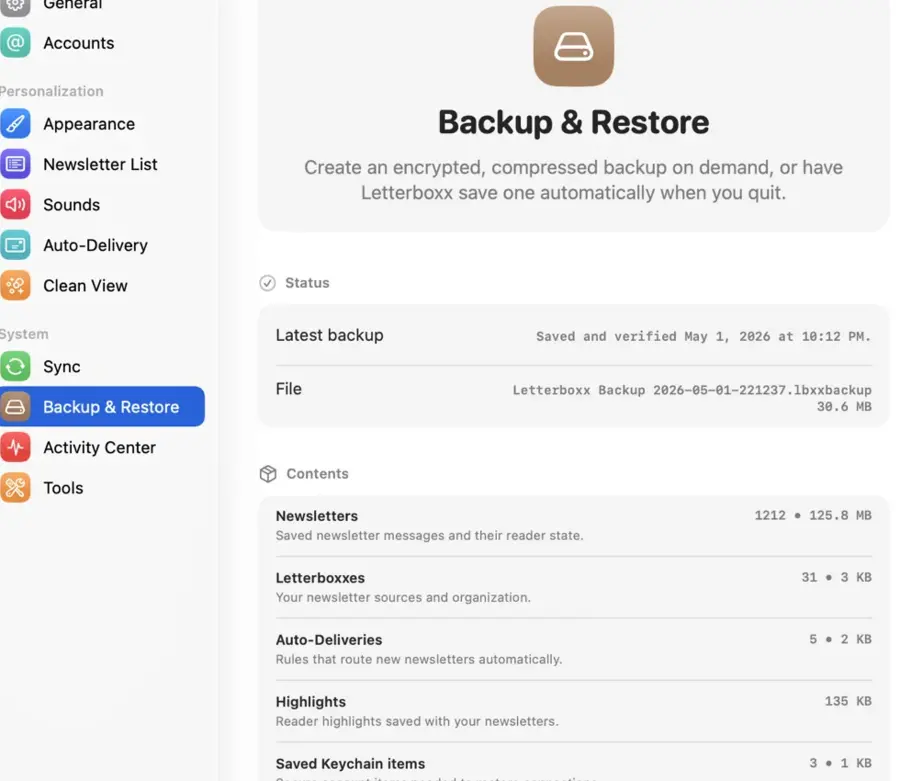
Backups can include newsletters, Letterboxxes, Auto-Delivery rules, highlights, app settings, and saved account passwords when they are available from Keychain for known accounts.
Create a manual backup before major cleanup, before moving to another Mac, before changing account setup, or whenever you want a known restore point.
Automatic backup can create an encrypted archive when Letterboxx quits. You choose the destination folder, how many backups to retain, and the backup password stored in Keychain.
Backup & Restore
56
Backup & Restore
57
Restore lets you inspect a backup before applying it. After restore, quit and reopen Letterboxx to finish applying the restored data.
Keep your backup password safe. Letterboxx cannot decrypt an encrypted backup without it.
Backup & Restore
58
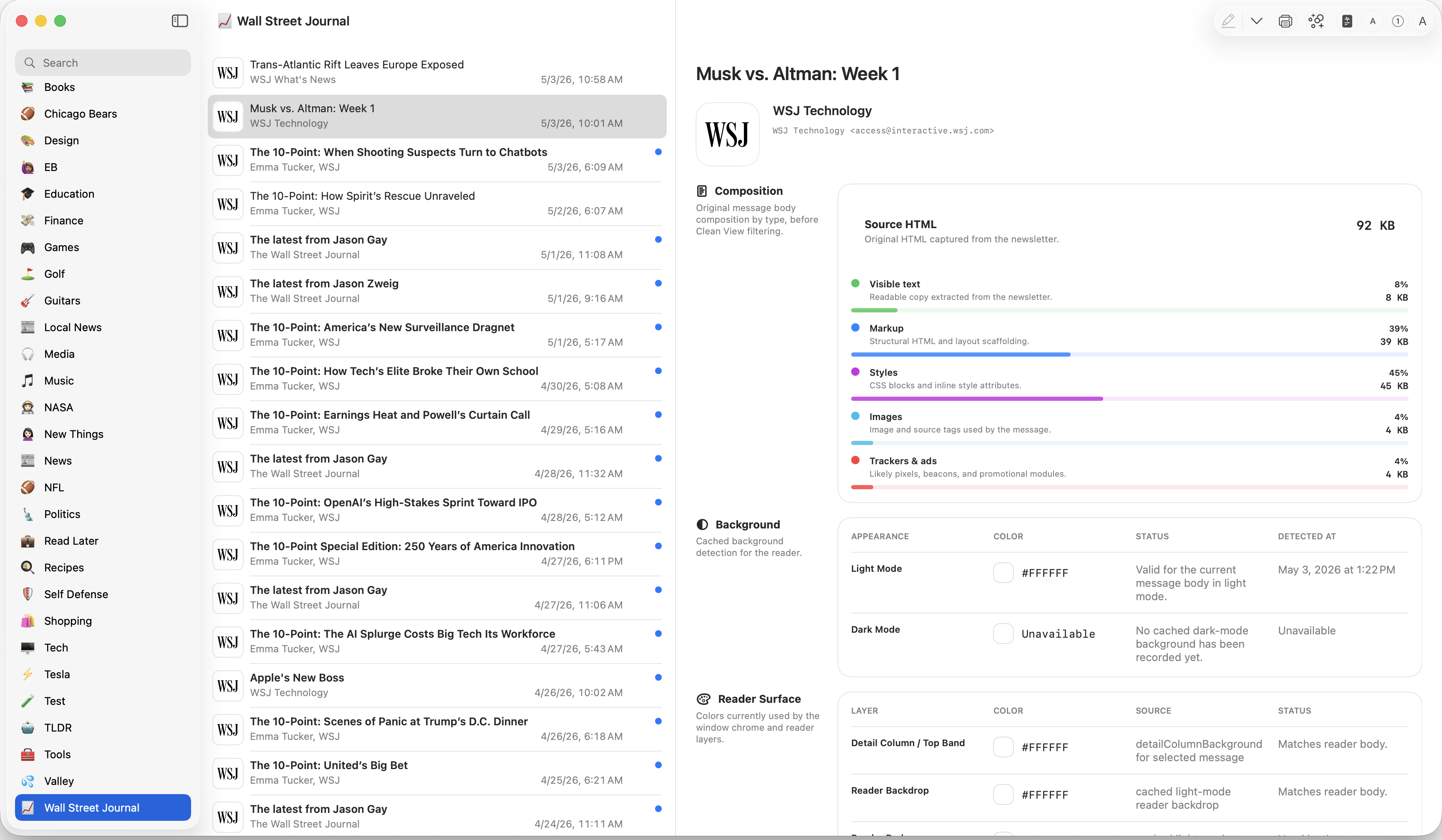
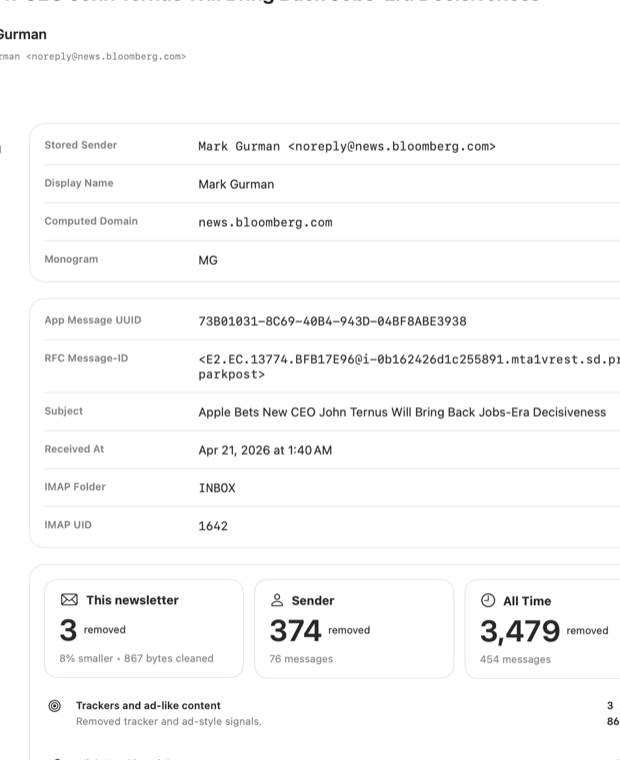
Message Diagnostics is available from the toolbar or with Command-I. It flips the selected newsletter to a technical view where you can inspect message headers, raw source, composition, and other details. You generally will not need it for normal reading, but it is useful when a newsletter looks wrong or you want to understand what Letterboxx received.
The diagnostics view includes sender identity, headers, message composition, Clean View information, raw source, and unsubscribe details for the selected newsletter.
Message Diagnostics
59
Message Diagnostics
60
Message Diagnostics
61
Activity Center records app-wide events including sync, IMAP, account, backup, trash, and highlight activity. You can view the full log, copy it, or clear it.
Tools holds maintenance actions:
Activity Center
62
These are maintenance and troubleshooting tools. Most users will not need them during normal use.
Activity Center
63
Letterboxx is designed to keep as much of your newsletter library and reading activity on your Mac as practical. Because it connects to email accounts, it is important to be clear about what is stored locally and what can affect the mail server.
The important points:
Privacy
64
For the formal policy, read the Privacy page.
Privacy
65
Common Questions
66
Mail remains your email client. Letterboxx is for newsletters you want to read, organize, search, highlight, and keep.
Where does Letterboxx fit with Mail?
67
No. Letterboxx downloads local copies from the IMAP folders you select and leaves the original messages on the mail server. Folder routes only decide where those copies appear inside Letterboxx.
Does Letterboxx move my newsletters out of my mail account?
68
Deleting a newsletter in Letterboxx moves it to Letterboxx's Trash first. If that newsletter still has a server reference, emptying or permanently removing it from Trash can delete the original message from the connected email account. If you are doing a large cleanup, make a backup first.
What happens when I delete a newsletter?
69
No. Downloading newsletters does not mark them read on the server. Read/unread changes are only exchanged when the account's Read status setting is configured to send or sync that state.
Does downloading a newsletter mark it read on the server?
70
The initial download is recent-first and is capped to a recent set of messages from each selected folder so setup can finish quickly. Also make sure the older newsletter is in a folder Letterboxx is configured to use.
Why are old newsletters missing?
71
Switch Clean View to Off to compare the original. If you want a middle ground, use Custom and choose the blockers yourself.
Why did Clean View remove something I wanted?
72
Some senders require confirmation on their own unsubscribe page. When one-click unsubscribe is not available, Letterboxx opens the sender's unsubscribe link in your default browser.
Why does unsubscribe open my browser?
73
Yes. Make a backup before account removal, large cleanup, or restore work. Account and cleanup actions can change what local newsletters remain available.
Should I back up before removing an account?
74
These shorter guides cover specific parts of Letterboxx in more detail:
More Letterboxx Guides
75
More Letterboxx Guides
76
This guide will change as Letterboxx changes. The goal is to keep it accurate about what the app reads, what it stores, what it backs up, and which actions can affect messages on the mail server.
Read the Terms, the Privacy page, or send questions to support@letterboxxsoftware.com.
Learn More
77
Quick Start Sheet
1
Start with one newsletter mailbox or focused folder.
2
Connect the account and test folder access before saving.
3
Choose only the IMAP folders Letterboxx should import from.
4
Open one issue and try Clean View.
5
Make one Letterboxx, then back up the good stuff.
Quick Start
78
Letterboxx
User Guide
Letterboxx: Newsletter Reader is a Mac app for reading and organizing email newsletters.
Letterboxx is the newsletter reader I wanted for my own Mac.
I have been saving and reading things from the Internet since the late 1990s: RSS feeds, blogs, long-form essays, newsletters, and small updates from people doing interesting work. I have always liked keeping good writing around so I can come back to it.
Newsletters eventually moved into email, which solved delivery but created a different problem: the inbox was never designed to be a reading library.
Your inbox has to handle everything: receipts, password resets, appointments, work messages, personal mail, and all the other things that need attention. Newsletters are different. They are things you choose to read, save, search, highlight, and return to. I wanted them to have a place built around that.
Some of the thinking behind Letterboxx goes back to 2002. I was working in IT then, helping manage large Windows deployments with Microsoft SMS and antivirus rollouts. Most of my day-to-day work with computers was operational: deploy, maintain, patch, clean up, repeat.
Then I bought a used first-generation iPod on eBay. A few weeks later, I picked up a used G4 iMac.
That was not an especially practical family-budget decision. We had a 6-year-old, a 17-month-old, and not much extra money for things we did not actually need. My wife still supported it, as she has with a lot of my ideas over the years.
That whole Apple world changed the way I thought about software. The hardware, OS X, the industrial design, the animations, and the way the pieces worked together made software feel considered in a way I had not experienced before.
For more than 20 years I have helped build web and mobile software with a lot of talented teams. Letterboxx is different: it is the first software product I have released entirely on my own. That gave me room to make very specific decisions about what the app should do, how it should look, and how it should behave on a Mac.
That also means Letterboxx is opinionated. I have tried to make it feel native to the Mac, useful without being complicated, and flexible where reading preferences really differ from person to person.
I built Letterboxx as the email newsletter reader I wanted: a Mac-first library for newsletters that I do not want buried beside urgent mail. Email can keep doing email. Letterboxx gives newsletters their own place to be read, organized, searched, and kept. I write more about the thinking behind the app in the Letterboxx letters.
That is Letterboxx: a place to collect newsletters instead of scattering them through your inbox, with enough control to make reading work the way you want it to. I also wanted it to be a genuinely “Mac-assed Mac app”. I hope you enjoy using it.
Chris Anderson, May 2026
Letterboxx connects directly to your email account using IMAP, then retrieves newsletters from the folders you choose and stores local copies in its Mac reading library. Gmail uses Google sign-in for account access; iCloud, Outlook, DreamHost, and other providers use standard IMAP settings when available.
After you connect an account and choose its newsletter folders, Letterboxx downloads copies of messages from those sources and continues checking them for new issues. It does not mirror your entire mailbox. Only the folders you select become sources for the Letterboxx library.
Your original messages remain on the mail server unless you explicitly delete them. If a newsletter still has a server reference, permanently removing it from Letterboxx Trash can also remove the original message from the connected email account. Read and unread status is separate: each account can keep that state only in Letterboxx, send changes back to the server, or sync recent server state in both directions.
A few terms are worth separating:
When the distinction matters, this guide says IMAP INBOX for the mail-server folder and Letterboxx Inbox for the local app view.
Read status is configurable per account:
Local only keeps read and unread changes inside Letterboxx.Send to mail server sends local read and unread changes back to the original IMAP folder in the background.Sync with mail server also refreshes recent downloaded newsletters from the server's read status during normal checks.Organization inside Letterboxx is local. Letterboxxes, favorites, highlights, reminders, Clean View settings, and Auto-Delivery rules apply to the library on your Mac; they are not folders or rules on your mail server.
Deletion is the important exception. If a newsletter still has a server reference, permanently removing it from Letterboxx Trash can affect the original message in your email account. Back up your Letterboxx library before large cleanup or account changes.
Imagine you have a folder in Mail called “Stocks” with years of newsletters, earnings analysis, investing ideas, and market commentary.
Letterboxx can use just that folder as a source and build a dedicated reading library from its newsletters. The originals stay where they are in email; Letterboxx gives you a different way to use the copies on your Mac.
The same approach works for a Tech folder full of product writing, a Local News folder, a Research folder, or any other mailbox where newsletters have accumulated over time.
Email apps are designed for communication:
Letterboxx is designed for reading:
If you want the essay version of this distinction, read Why Newsletters Feel Different From Email.
That is the basic distinction: Mail is still your email client. Letterboxx is the place where newsletters become a reading library you can organize, search, highlight, and keep.
For a shorter version of the reading model, see the email newsletter reader page. Gmail users can start with the Gmail newsletter reader. For the organization model, read the guide to organizing newsletters with Letterboxxes.
Letterboxx has a lot of settings, but you do not need to configure everything before you start reading.
Start with the defaults. As you use the app, you can change the parts that matter to you: list density, reader appearance, sounds, Dock badges, Clean View, backups, and how newsletters are routed into Letterboxxes.
Settings gives you control over:
For a new setup, accounts, source folders, and the reader are enough. The rest can wait until you know which parts of the app you actually want to change.
Letterboxx supports Gmail, iCloud, Outlook, DreamHost, and custom IMAP accounts.
Gmail uses Google sign-in. Other providers use their IMAP host, port, username, password, and TLS settings. Letterboxx tests the connection before saving the account.
Choose the email folders that actually contain newsletters. Letterboxx only checks the folders you select.
When your provider returns a folder list, Letterboxx shows it in a searchable chooser. If the provider cannot return a useful list, you can enter folder names manually.
Each selected IMAP folder can send downloaded newsletters to Letterboxx Inbox or directly to a local Letterboxx. This only controls where the local copies appear. It does not move the original messages on the server.
In Settings > General, choose whether Letterboxx delivers automatically on launch and whether it keeps checking while open or waits for manual checks from the newsletter list.
You can also choose what the Dock badge counts: nothing, Inbox only, all newsletters, unread, today, yesterday, this week, last week, or reminders.
Reminder notifications can show subject and sender, subject only, or sender only.
The reader is where you spend most of your time with a newsletter. Letterboxx keeps the reading surface separate from the rest of the app so you can tune it independently.
The reader toolbar includes:
Show Clean View button in the reader.
Settings > Appearance separates the app interface from the newsletter reader. You can change one without forcing the other to match.
The app appearance can follow the system, use Light or Dark, or use Kitty Cat. Kitty Cat changes the dashboard and sidebar with an Aqua-inspired look while leaving newsletter content in the reader separate.
Reader themes are separate:
Night Vision controls how Letterboxx treats newsletter content when you read in a dark interface. Newsletters arrive with wildly different backgrounds, colors, and HTML, so a single dark-mode treatment does not work well for all of them. Off leaves the newsletter essentially as delivered. Default applies the gentlest dark treatment. Standard uses stronger normalization. Adaptive is the most contrast-forward option.
Select text in the reader, then add a highlight from the toolbar or contextual menu. Highlights are saved with the newsletter in Letterboxx so you can find those passages again later.
Highlights work well for quotes, ideas, recipes, product notes, research, or anything else you want to find again without searching the whole newsletter.
The newsletter list can be adjusted for either quick scanning or a simpler reading queue.
Settings > Newsletter List lets you adjust:
For faster scanning, show more metadata and use a tighter row density. For a simpler list, hide details you do not use and give the subject more room.
Settings > Appearance also controls sidebar counts and density, independently of the newsletter list.
Clean View is the reader's privacy and content-cleanup layer.
Before a newsletter is shown in the reader, Clean View can filter parts of its HTML that are not useful to the reading experience, including scripts, trackers, ads, autoplay media, embeds, and—when you choose it—remote images.
Cleaning modes:
Custom mode gives you separate controls for page scripts, trackers and ads, autoplay media, embeds, and remote images.
Medium is the default and is intended to be conservative. High is available when you want stricter blocking. Off is useful for compatibility or when you want to compare the newsletter without content blocking.
When Clean View is enabled, filtering happens automatically before the newsletter is rendered. Use Show Clean View in the reader to inspect what was removed from the selected newsletter and open the related settings.
The report is specific to the current newsletter. It shows the categories Clean View changed and the amount of content removed from that message.
Settings > Clean View contains the global controls, including Cleaning Mode, individual content blockers, Blocking List status, cumulative totals, and Clean View Intelligence details.
You can update the Blocking List from Settings. Letterboxx shows its current status, update time, version, source, verification state, and source count when available.
Letterboxxes are local folders or categories inside your newsletter library. You can use them for topics, publications, projects, clients, hobbies, research, shopping, or any other grouping that makes sense to you. The focused guide to organizing newsletters with Letterboxxes has more examples.
Auto-Delivery routes new newsletters into Letterboxxes automatically when they arrive.
Auto-Delivery works best for predictable patterns:
Rules can match all conditions or any condition. Conditions can look at From, To, Cc, any recipient, Subject, Message content, and List-ID. Operators include contains, does not contain, begins with, ends with, and is equal to.
If a selected IMAP folder is already routed directly to a local Letterboxx, that folder route takes precedence over sender- or content-based Auto-Delivery rules for new newsletters from that source.
Backup & Restore creates encrypted, compressed .lbxxbackup archives of your Letterboxx library.
Backups can include newsletters, Letterboxxes, Auto-Delivery rules, highlights, app settings, and saved account passwords when they are available from Keychain for known accounts.
Create a manual backup before major cleanup, before moving to another Mac, before changing account setup, or whenever you want a known restore point.
Automatic backup can create an encrypted archive when Letterboxx quits. You choose the destination folder, how many backups to retain, and the backup password stored in Keychain.
Restore lets you inspect a backup before applying it. After restore, quit and reopen Letterboxx to finish applying the restored data.
Keep your backup password safe. Letterboxx cannot decrypt an encrypted backup without it.
Message Diagnostics is available from the toolbar or with Command-I. It flips the selected newsletter to a technical view where you can inspect message headers, raw source, composition, and other details. You generally will not need it for normal reading, but it is useful when a newsletter looks wrong or you want to understand what Letterboxx received.
The diagnostics view includes sender identity, headers, message composition, Clean View information, raw source, and unsubscribe details for the selected newsletter.
Activity Center records app-wide events including sync, IMAP, account, backup, trash, and highlight activity. You can view the full log, copy it, or clear it.
Tools holds maintenance actions:
These are maintenance and troubleshooting tools. Most users will not need them during normal use.
Letterboxx is designed to keep as much of your newsletter library and reading activity on your Mac as practical. Because it connects to email accounts, it is important to be clear about what is stored locally and what can affect the mail server.
The important points:
For the formal policy, read the Privacy page.
Mail remains your email client. Letterboxx is for newsletters you want to read, organize, search, highlight, and keep.
No. Letterboxx downloads local copies from the IMAP folders you select and leaves the original messages on the mail server. Folder routes only decide where those copies appear inside Letterboxx.
Deleting a newsletter in Letterboxx moves it to Letterboxx's Trash first. If that newsletter still has a server reference, emptying or permanently removing it from Trash can delete the original message from the connected email account. If you are doing a large cleanup, make a backup first.
No. Downloading newsletters does not mark them read on the server. Read/unread changes are only exchanged when the account's Read status setting is configured to send or sync that state.
The initial download is recent-first and is capped to a recent set of messages from each selected folder so setup can finish quickly. Also make sure the older newsletter is in a folder Letterboxx is configured to use.
Switch Clean View to Off to compare the original. If you want a middle ground, use Custom and choose the blockers yourself.
Some senders require confirmation on their own unsubscribe page. When one-click unsubscribe is not available, Letterboxx opens the sender's unsubscribe link in your default browser.
Yes. Make a backup before account removal, large cleanup, or restore work. Account and cleanup actions can change what local newsletters remain available.
These shorter guides cover specific parts of Letterboxx in more detail:
This guide will change as Letterboxx changes. The goal is to keep it accurate about what the app reads, what it stores, what it backs up, and which actions can affect messages on the mail server.
Read the Terms, the Privacy page, or send questions to support@letterboxxsoftware.com.
