
The original messages
- your Gmail labels and folders
- the original newsletter emails
- account messages, replies, and email search
- the mail workflow you already know
Letterboxx connects to Gmail, imports local copies from the folders or labels you choose, and gives newsletters a dedicated reading home while the original messages stay in Gmail.

The goal is not to replace Gmail. The goal is to pull newsletter copies out of inbox pressure and into a Mac app built for reading, organizing, highlighting, and search.
If you are choosing a newsletter app for Mac, this Gmail workflow shows the practical boundary: Gmail keeps account truth, while Letterboxx gives imported newsletters a local reading library. For the shorter landing-page version, start with the Gmail newsletter reader.
| Step | What to do | Why it matters |
|---|---|---|
| Connect Gmail | Add a Gmail account in Letterboxx and use Google sign-in. | Gmail gets a normal account connection without asking you to paste server settings. |
| Choose folders or labels | Select only the Gmail places that contain newsletters. | Letterboxx imports the reading material, not every corner of your inbox. |
| Route imported copies | Send a folder to Letterboxx Inbox or directly into a topic-based Letterboxx. | New issues can land close to the way you already think about topics. |
| Read and revisit | Use Clean View, highlights, search, and Letterboxxes after import. | Newsletters become a library instead of another inbox chore. |
If Gmail has a label for newsletters, start there. If newsletters mostly land in Promotions, start with the subset that matters. Letterboxx works best when you choose the folders that actually contain things you want to read.
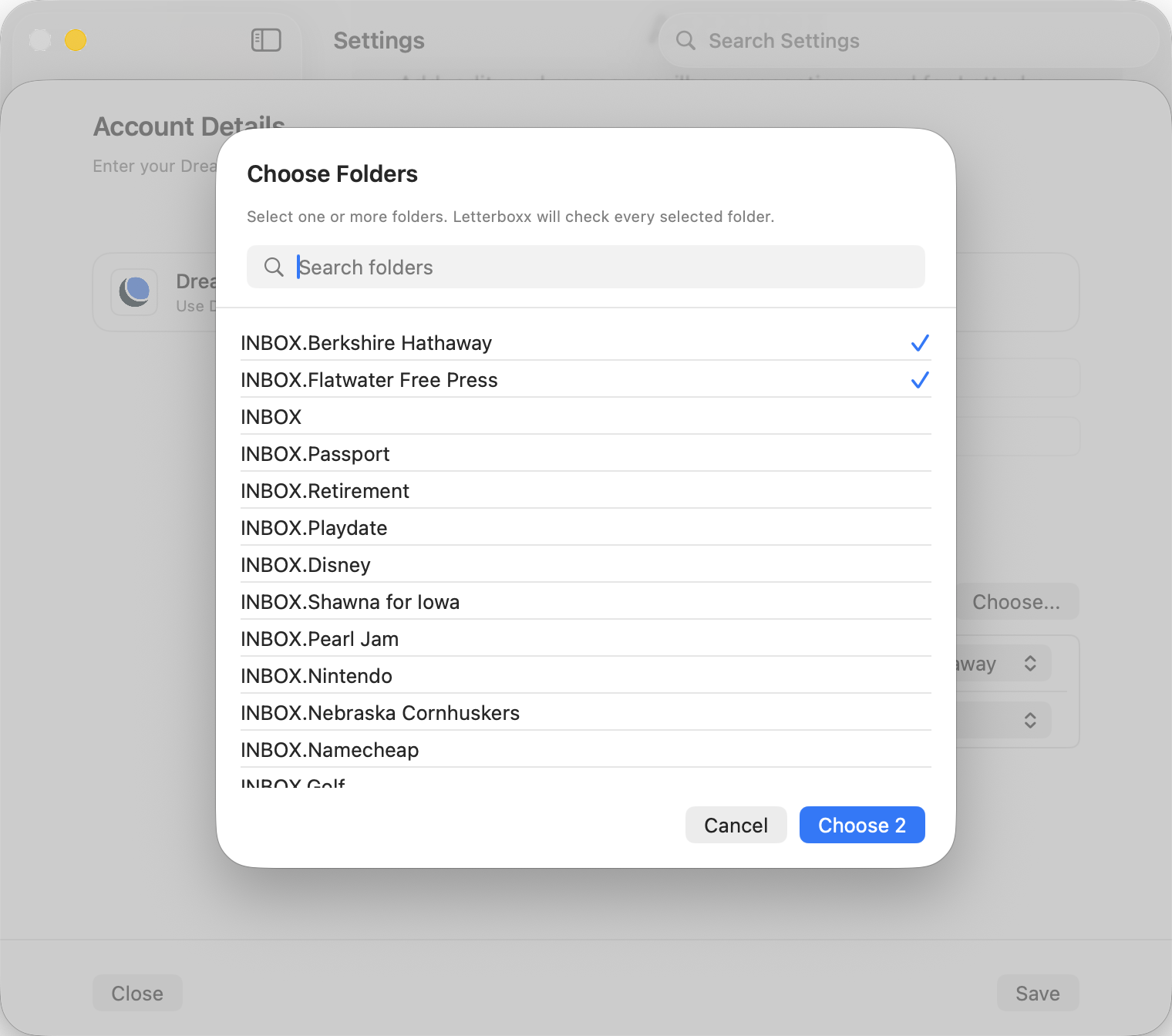
Once copies are in Letterboxx, the work shifts from inbox management to reading and recall. That is the difference between a Gmail label and an email newsletter reader: the mail account still has the original messages, while Letterboxx gives you a place to organize email newsletters. For the full source-to-library path, see how to build your newsletter library. After your first Gmail import, the next useful steps are to organize newsletters with Letterboxxes and use Clean View when publisher HTML gets noisy.
No. Letterboxx imports local newsletter copies from the Gmail folders you choose. The original messages stay in Gmail.
No. Importing uses a read-safe fetch. Read/unread exchange only happens if you choose an account read-status mode that sends or syncs read status.
Yes. Choose only the Gmail labels or folders that contain newsletters. Letterboxx does not need every folder in your account.
Letterboxx starts with a recent-first import so setup can finish quickly. Also confirm the newsletter is in a selected Gmail folder or label.
Start with the Gmail folders that matter most, import newsletter copies into Letterboxx, and keep Gmail focused on email.
